
Watercolor for Surface Pattern Design: Working with Adobe Illustrator
Bonnie Christine · Surface Pattern Designer + Artist
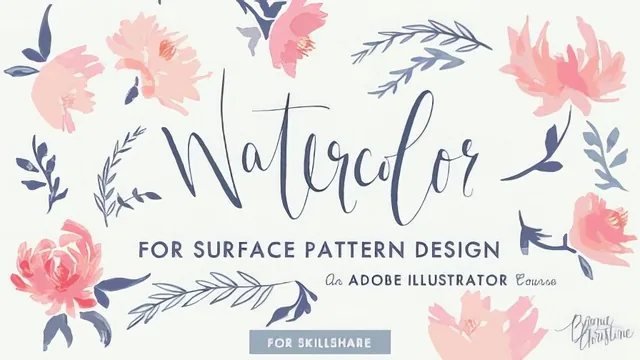
A focused, honest walkthrough of turning painted watercolors into recolorable vector patterns in Illustrator, though it assumes real Illustrator fluency going in.
This course solves one specific, well-defined problem: how to bring the loose, bled-out look of real watercolor paint into Adobe Illustrator without it turning into a flat, lifeless vector. It does not teach watercolor painting technique itself, and it does not teach Illustrator basics. Both of those are pushed off to prerequisite courses by the same teacher. What is left is a tight, practical middle stretch of a professional pattern-design workflow, and within that narrow scope it delivers.
Structure and technique
The arc runs in a logical build: paint, scan, vectorize, color, layer, repeat, recolor, export. The most useful habit taught early is painting each element of a motif separately, petals apart from stems apart from stamens, purely so that later steps in Illustrator have clean, isolated shapes to work with. That single discipline is what makes everything downstream possible, and the course is honest that skipping it will cost you control later.
The vectorizing section is the most technically dense part of the course, and it is also where the real craft lives. Image Trace forces a choice about total color count, and the course walks through the tradeoff directly: more colors preserve painterly detail, fewer colors make later recoloring fast. Settling on six to eight colors per element, then simplifying path points down to around 98 percent to keep file size manageable, is a specific, transferable piece of production knowledge rather than a generic tip.
The palette-building section is the strongest single stretch. Using the Blend Tool's specified-steps option to generate a graduated run of colors between two or three chosen hues, then feeding that exact stepped group into the Recolor Artwork tool, is what actually makes a watercolor pattern recolorable with a few clicks instead of a slow manual repaint. The course demonstrates this working, and also demonstrates it failing when colors are picked randomly instead of graduated, which is a genuinely useful negative example.
Pattern building and delivery
The repeat-building section covers the standard tossed, non-directional pattern approach: locking a background bounding box, duplicating elements that cross the edges by the exact tile dimensions, and filling gaps with rotated or recolored copies of existing motifs. This is competent and clearly demonstrated, but it will feel familiar to anyone who has built a repeat before, since it is largely a reapplication of pattern-making fundamentals rather than something new to the watercolor context.
The closing lessons on exporting for the web and building standalone clip art are practical but minor, more of a tidy finish than core content. The final project brief is reasonable: paint, vectorize, palette, and one finished repeating pattern, with room to submit two color options.
Where it falls short
The course is honest about its limits, including a direct statement that it is not for Illustrator beginners, and that honesty is worth respecting rather than a weakness. But at 81 minutes it moves quickly through the vectorizing and coloring stages, so a viewer without strong Illustrator muscle memory around live trace, grouping, and the recolor tool will likely need to pause often. The 2016 vintage also shows in small ways: the recommended scanner is not the version currently sold, and Illustrator's interface has evolved since Live Trace was current terminology. None of that undermines the core technique, which is unchanged, but it does mean small workarounds are needed for anyone following along on a current version.
The standout
The lesson on building graduated palettes with the Blend Tool's specified-steps option, then feeding those exact color groups into Recolor Artwork, is the one technique that makes watercolor patterns recolorable at all rather than a manual repaint every time.
What you will learn
- Paint watercolor elements separately by piece (petal, stem, leaf, stamen) so each can be isolated and recolored independently later
- Scan and import artwork with Image Trace, choosing a deliberate color count (6 to 8) to balance watercolor fidelity against ease of recoloring
- Build a graduated color palette using the Blend Tool with specified steps so light-to-dark hues step out correctly instead of looking muddy
- Use the Recolor Artwork tool with matched color groups to recolor an entire pattern in one pass instead of manually repainting
- Construct a seamless, non-directional tossed repeat using the Move/Transform-copy method with a locked background bounding box
- Export finished artwork correctly for web use and for standalone transparent clip art
Best for: Surface pattern designers already comfortable in Adobe Illustrator who want to bring a hand-painted watercolor look into a vector workflow they can license and recolor efficiently.
Skip it if: Anyone new to Illustrator, unfamiliar with basic pattern-making, or hoping for a Photoshop-based or purely digital watercolor-brush workflow, since none of that is covered here.