
Video Editing: Create Cinematic Travel Videos in Premiere Pro
Ankit Bhatia · Travel Filmmaker
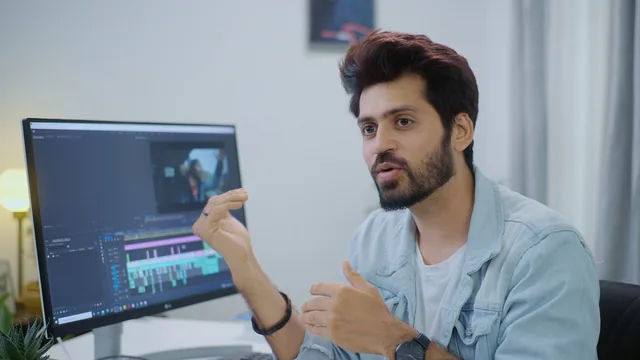
A 40-minute crash course in the storytelling logic behind travel videos, light on Premiere Pro mechanics themselves.
A workflow, not a manual
This course sells itself on the arc from raw footage to a finished travel film, and it mostly delivers on that promise, though not evenly. The eleven core lessons trace a real production pipeline: pick a destination, organize files by day and camera, build a rough "base timeline" of standout clips, write a paper outline of the story, then move into music, voiceover, transitions, and color. That structure is the course's real strength. It mirrors how a working filmmaker actually thinks about a project, rather than treating editing as a checklist of button presses.
The footage-organization lesson is a good example of this practical bent. The advice to create day-by-day folders split further by camera source, sounds almost too obvious to teach, but it is the kind of housekeeping habit that saves hours once a project involves a DSLR, a GoPro, and a drone across a week of shooting. The same applies to the idea of a base timeline: a first pass where interesting clips get pulled onto a single track purely to keep options visible, before any narrative decisions get locked in.
Where the technical depth thins out
The music and voiceover lessons are useful but narrow. Choosing a stock track by its waveform build, then cutting it at a beat with a constant power dissolve, is a genuinely transferable trick. The Audacity segment covering noise reduction, compression, and normalization gives a beginner a workable signal chain for a clean voiceover, and it names the exact effects to click in a defensible order. Both moments matter, but each gets only a few minutes, so anyone unfamiliar with these tools will need to pause and experiment rather than learn by immersion.
The two transition demonstrations, a pen-tool mask reveal and a time-remapped speed ramp, are the sharpest technical material in the course. The speed ramp lesson stands out for actually explaining the math: footage shot at 120 frames per second on a 24-frame timeline can be slowed to 20 percent before it stutters, and that number changes if the frame rate changes. It is a rare instance of the course showing its reasoning instead of just its result.
Color grading closes the course with a tour of Lumetri's basic correction, creative curves, hue versus hue adjustments, and saved presets. It is a fair overview of where the tools live, but it stays surface level. There is no real discussion of skin tone protection, scopes, or matching shots across different cameras, which matters more in travel footage than in most other genres given the mix of drone, GoPro, and DSLR sources described earlier in the course.
Taken as a whole, this is closer to a mood board and workflow diagram than a skills-building course. It succeeds at showing what a finished creative process looks like, using the teacher's own Kashmir footage as a consistent through-line and bonus payoff at the end. It succeeds less at giving a true beginner the muscle memory to execute each technique independently, since most steps get one demonstration and no repetition. Viewers already comfortable navigating Premiere Pro will get the most out of it.
The standout
The speed-ramp transition walkthrough, which ties the exact slow-down percentage to frame rate math so two mismatched clips cut together seamlessly.
What you will learn
- Organizing multi-day, multi-camera footage into a folder structure before editing begins
- Building a rough 'base timeline' of highlighted clips before scripting a narrative
- Selecting and trimming licensed stock music to match a build-style intensity curve
- Recording, cleaning, and compressing a voiceover in Audacity using noise reduction and normalization
- Two specific transition builds in Premiere Pro: a pen-tool mask reveal and a speed-ramp cut
- Basic and creative-tab color grading in Lumetri, including hue vs hue curves and saving a custom preset
Best for: A beginner who already has some travel footage and a working knowledge of Premiere Pro's interface and wants a repeatable creative workflow, not software fundamentals.
Skip it if: A complete newcomer to Premiere Pro looking for interface tutorials, or anyone wanting deep technical instruction on any single technique.