
Turn a Photo into a Cartoony Artwork (in 3 easy steps!)
Maria Lia Malandrino · Story / Illustration / Animation
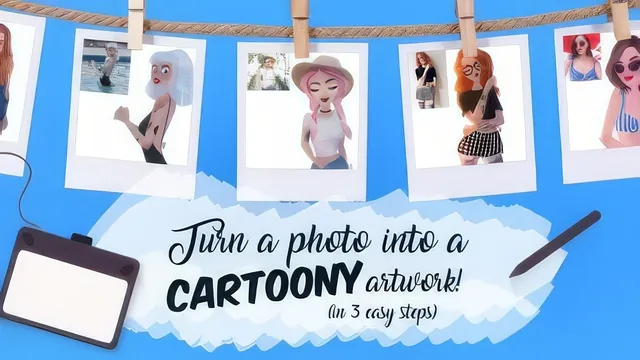
A 26-minute Photoshop portrait class that trades depth for speed, useful mainly as a quick proportions-and-shading refresher.
Maria Lia Malandrino's class promises a three-step path from photo to cartoony portrait, and it largely delivers on that narrow promise: sketch, flat color, shade. At 26 minutes across five lessons, it moves fast, which is both its main appeal and its main limitation.
Structure and what it actually teaches
The sketch lesson is the most substantive. It walks through picking a reference photo based on pose and visibility of the body, then building a construction sketch using basic geometric shapes: a circle for the head, an oval for the torso, with a center line to keep things symmetrical. The key teaching point is proportion exaggeration: cartoon faces get bigger relative to the body, noses and bodies shrink, and eyes grow. The instructor demonstrates specific feature shortcuts, like building a nose from a triangle with a small circle at the tip, or placing eyebrows along a line traced from the reference photo. These are useful, concrete rules of thumb rather than vague encouragement.
The coloring lesson covers flat color technique: naming layers, locking a base color layer so shading stays contained, and using the lasso tool with fill shortcuts to speed up color blocking. It also introduces clipping masks to add blush and eye highlights without spilling outside the base shape, a genuinely useful Photoshop trick for anyone doing digital illustration, not just portraits.
The final lesson stacks multiple shading layers, each set to a different blend mode, to build up soft shadow, hard shadow, highlight, and a colored gradient overlay. This is the closest thing to a signature technique in the course, and it is demonstrated with specific blend mode choices (multiply for shadow, color dodge for extra light) rather than left abstract.
Where it falls short
The course's biggest weakness is pacing relative to its stated audience. The Skillshare description claims little to no experience is required, but the instruction moves through anatomy exaggeration and layer management quickly, assuming the viewer can keep up with tool switches, shortcuts, and blend mode changes without much repetition or troubleshooting guidance. A true beginner is likely to feel rushed rather than guided.
There is also very little time spent on tool fundamentals. Brush selection, the lasso tool, and clipping masks are introduced almost in passing, on the assumption that viewers already have some Photoshop fluency. Someone coming from a different painting program will need to translate these steps themselves.
The wrap-up lesson adds little beyond encouragement and a call for feedback and future class ideas, which is reasonable but doesn't extend the actual skill content.
Verdict
This is a competent, compressed workflow demonstration best suited to someone who already paints digitally and wants a specific formula for Disney-style portraits, rather than a true introduction to digital art or portraiture. The proportion rules and the layered shading approach are worth the runtime; the beginner-friendly framing oversells its accessibility.
The standout
The clipping-mask shading stack in the final lesson, which layers soft shade, hard shade, highlights, and a colored gradient under different blend modes to give a flat cartoon portrait real depth.
What you will learn
- How to rough in cartoony body proportions from a photo reference using basic geometric shapes (circle for head, oval for torso)
- How to exaggerate facial features for a Disney-style look (bigger eyes, smaller nose, compressed body)
- A layer-based flat coloring workflow using the lasso tool and Alt+Delete fills to keep colors within borders
- How to fake stray hair strands and add blush and eye sparkle using clipping masks
- A five-layer shading stack (soft shade, hard shade, light, color touch, gradient) with blend modes like multiply and color dodge
- How to use gradients and blending mode experimentation to add mood lighting to a finished piece
Best for: Someone who already sketches or paints digitally and wants a fast, opinionated workflow for turning a photo into a Disney-style portrait in Photoshop.
Skip it if: Complete beginners to digital art or anatomy, since the class assumes comfort with layers, masks, and a tablet and moves through proportion theory in minutes rather than teaching it from scratch.