
Triple Your Typing Speed - The Ultimate Guide to Keyboard Mastery
Ali Abdaal · Doctor + YouTuber
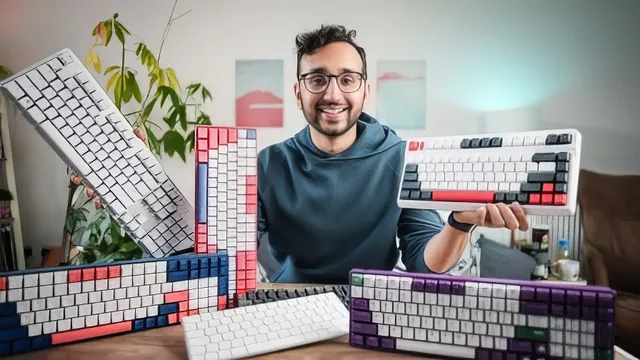
A doctor-YouTuber hands over his own keyboard-shortcut cheat sheet in under an hour, but the class is a checklist, not a curriculum.
Ali Abdaal opens by admitting the obvious: typing speed will not fix procrastination or make anyone more productive in a deep sense. That honesty sets the tone for a class that never oversells itself. What follows is thirteen short lessons, most under five minutes, built around a live demonstration format: Abdaal types on screen, narrates what his fingers are doing, and explains why.
What the class actually teaches
The strongest material is the correction-shortcut lesson. Instead of hammering Backspace, the class drills Option+Backspace to delete a whole word and Command+Backspace (or Shift+Backspace on Windows) to clear a full line, then extends this into using Option and Shift with the arrow keys to jump between words and highlight them for replacement. It is demonstrated on a deliberately garbled line of "Somewhere over the rainbow," which makes the technique concrete rather than abstract. This single habit, once internalized, changes how a fast typist edits mid-sentence, and it justifies sitting through the rest of the course on its own.
The finger-placement and muscle-memory sections cover familiar touch-typing basics (F and J home-row bumps, resting position) but add a genuinely useful idea in the rollover technique, where the next key is pressed before the previous one is released, described through a piano-playing analogy. The practice-method lesson recommends keybr.com specifically because it isolates weak letters rather than testing whole sentences, which is a more targeted approach than the usual "just do more typing tests" advice, though the class stops short of building any practice regimen into itself.
Where it thins out
Several lessons drift away from typing speed into general productivity tricks: macOS text-replacement snippets for auto-expanding emails and stock replies, and Alfred-style app launching to skip the mouse. These are genuinely useful habits for computer fluency, but they are not typing speed techniques, and their inclusion padding out a 53-minute class suggests thin source material stretched to fill a syllabus. The keyboard-buying and posture lessons are the weakest of all: sensible but generic advice (mechanical versus membrane switches, QWERTY over Dvorak, a 90-degree seated position) that could be found in any ergonomics article.
The class project, taking a typing test and posting a screenshot, gives no feedback loop or coaching, and the "how to fix weaknesses" lesson essentially outsources the actual work to a third-party website rather than building a practice plan into the course. For a class explicitly about building a skill through repetition, the absence of any structured drill sequence is a real gap.
This works best as a fast primer for someone who already types reasonably well and wants a handful of habits, chiefly the word and line deletion shortcuts, to make their daily computer use faster. It is not a typing course for beginners who need graduated practice, and the Mac-centric demonstrations mean Windows users will need to translate several of the specific keystrokes themselves.
The standout
The Option+Backspace (word) and Command+Backspace (line) deletion habit, demonstrated live on a garbled line of text, is the one shortcut worth the whole runtime.
What you will learn
- Word- and line-deletion shortcuts (Option/Command+Backspace on Mac, Ctrl/Shift+Backspace on Windows) for correcting typos without repeated Backspace taps
- Home-row finger placement and the 'rollover' technique of pressing the next key before releasing the last one
- A weakness-targeted practice method using keybr.com's per-letter drilling instead of generic paragraph typing
- Building custom text-replacement snippets (macOS Keyboard > Text or Windows equivalents) to auto-expand emails, links and stock replies
- Launching apps and files without a mouse using Alfred- or Spotlight-style search tools
- Keyboard and posture choices: mechanical versus membrane switches, QWERTY versus Dvorak, and a 90-degree seated setup
Best for: Intermediate typists on a Mac who want a quick set of keyboard-first habits to shave time off daily typing and app-switching.
Skip it if: Complete beginners wanting a structured typing curriculum with built-in drills, or Windows users, since most demonstrations and shortcuts are Mac-specific.