
The Procreate Class: Beginner Basics + Beyond
Kiley Bennett · Artist + Online Educator
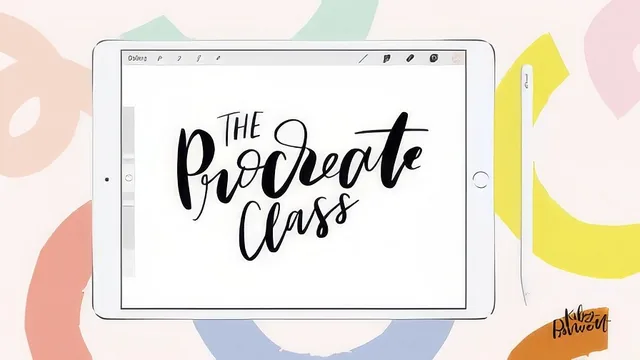
A fast, well-organized primer that teaches Procreate's real toolset but leaves professional-level drawing skill entirely up to you.
Kiley Bennett's "The Procreate Class" does what a beginner-level software tutorial should do: it moves briskly through the interface, names every tool, and gives just enough hands-on practice to make the app feel less intimidating. It will not teach anyone to draw. It will teach anyone who already draws, letters, or designs how to translate that skill onto an iPad.
Structure and pacing
The twelve lessons follow a logical build: documents and canvas setup, then color and palettes, then brushes, then the more mechanical tools (selection, layers, text, masks), ending in a final project that stitches everything together. This arc matters because Bennett explicitly designs it that way, having students build a color palette in lesson four that reappears in the brush lesson, the layers exercise, and the final composition. That continuity keeps the class from feeling like a disconnected list of menu tours, which is a common failure mode for software classes.
The canvas setup lesson is unusually thorough for a "beginner basics" video, covering pixels versus inches, DPI for printing, CMYK versus RGB color profiles, and the tradeoff between canvas size and available layers. This is the kind of practical, easy-to-overlook detail that saves a student from a ruined print job later, and it is handled with specific numbers rather than vague advice.
Where the technique lessons deliver
The brush and clipping mask lessons are the strongest material in the class. Bennett shows how to duplicate a stock brush and turn on pressure sensitivity to build a functional lettering brush, a small but genuinely useful trick for anyone coming from traditional brush pens. The clipping mask lesson goes further, demonstrating how to fill text with a photograph, a hand-painted pattern, or a scanned paper texture, and layering canvas or paper textures over a finished piece with the multiply blend mode to fake a painterly, hand-rendered look. That single technique, using a clipping mask as a texture fill for type or shapes, is worth the runtime on its own for anyone making social graphics or lettering art.
The layers and selection tool lesson is more workmanlike but still solid, walking through how to isolate a shape with the selection lasso, move it to its own layer, and use uniform scaling to keep proportions intact while assembling a pattern from individual pieces.
Where it falls short
The class leans heavily on downloadable bonus files, tracing sheets, a layers exercise file, and premade textures, distributed through an external Dropbox link rather than built into the lessons themselves. That is a reasonable way to keep video length down, but it also means a meaningful chunk of the "final project" experience depends on files outside the platform, which adds friction for anyone who skips the extra step.
More importantly, the class never addresses drawing fundamentals. Composition, color theory beyond palette mechanics, and mark-making are not on the syllabus. The final project is described as a loose, abstract pattern exercise with a sped-up "watch me work" demonstration rather than a fully guided build, so students without existing design instincts will end up with a technically correct file and little sense of why it looks good or bad. As a tool-literacy class it succeeds; as an art class it does not try to be one, and it should not be mistaken for one.
The standout
The clipping mask lesson, which shows how to fill text or shapes with photos, patterns, or hand-drawn textures for a finished, professional look.
What you will learn
- Setting up custom canvas sizes correctly for web, print, and DPI
- Building and saving reusable color palettes from scratch or from photos
- Customizing brushes for pressure-sensitive lettering
- Using Quick Shapes and the selection tool to clean up and manipulate artwork
- Importing custom fonts and formatting text
- Building layered compositions with clipping masks and blend modes like multiply
Best for: Complete Procreate beginners who already have some drawing or design sensibility and just need to learn the app's interface and tools.
Skip it if: Anyone hoping to learn drawing, illustration, or painting fundamentals, since the class assumes you already know how to create art and only teaches the software.