
Stop Motion In After Effects: Animate Collage Style Explainer Videos
Hongshu Guo · Motion Designer
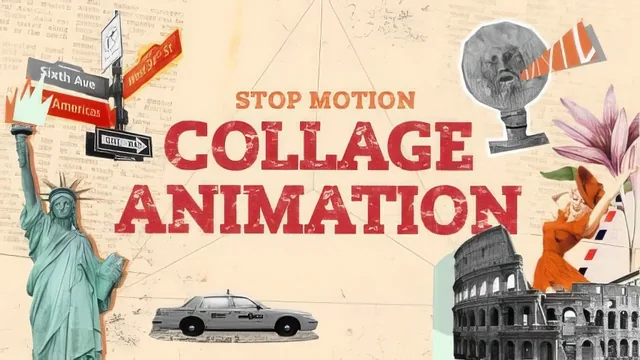
A working, hyper-specific pipeline for one collage stop-motion look, but it assumes you already know After Effects and Photoshop cold.
What it actually teaches
This course walks through one specific job end to end: turning a client-supplied Photoshop storyboard into a 20-second collage-style explainer video with a stop-motion feel. It opens with a short lesson on where storyboards come from, covering both the case where a client hands over finished artboards and the case where the animator has to build one from scratch using Freepik, Shutterstock, Pinterest, and coolors.com for reference and color palettes. From there it moves into the unglamorous but genuinely useful step of preparing the Photoshop file: exporting each artboard to its own PSD and converting layered elements with masks into smart objects so they do not break when imported into After Effects. That prep lesson alone will save anyone who has fought with mangled layer masks a lot of frustration.
The bulk of the course is scene-by-scene animation work inside After Effects: the background, the main "travel" text, transitions, and secondary elements for an opening scene, followed by an airplane transition, a New York scene, a Rome scene, and a closing logo lockup. The techniques repeat with variation across scenes, which is effective for reinforcement. Text gets animated letter by letter using duplicated layers, rectangle masks to isolate each character, and repositioned anchor points so rotation reads correctly. Transitions rely on animated mask paths on shape layers combined with alpha track mattes, a technique explained clearly enough with the red-color demonstration that it should click for anyone unfamiliar with track mattes.
The stop-motion technique and its limits
The course's real signature move is how it fakes a stop-motion look on top of smooth digital keyframes. The instructor lays down keyframes, right-clicks to apply Toggle Hold Keyframes so there is no interpolation between them, adds a wiggle position effect for randomized jitter, and then applies Posterize Time at five frames per second to choppy up the frame rate. Stacked together across every element in a scene, this produces a believable handmade look without touching a camera or physical materials. It is a genuinely transferable technique, and the course is honest that some elements, like shapes with shadows, do not play nicely with Posterize Time and need to be handled as exceptions.
Where the course is weaker is pacing and depth of explanation. Several lessons move through rapid sequences of keyframe placement, parenting, and mask adjustment with a running narration of numbers and positions rather than a deeper "why" behind each choice, particularly the animation-principles reference to overshoot, which gets applied more than it gets explained. The export lesson is brief, essentially just a walkthrough of sending the composition to Adobe Media Encoder. There is no real coverage of audio, voiceover, or music integration beyond a passing mention that students should add their own.
At 155 minutes across 17 lessons, this sits closer to a focused workflow tutorial than a broad motion design foundation. It delivers exactly what it promises for the collage stop-motion explainer format, and the class project of a 20-second travel-agency video gives a concrete, portfolio-ready deliverable. But its value depends entirely on already being comfortable in After Effects and Photoshop, since the instructor explicitly skips software fundamentals throughout. Someone meeting masks, track mattes, or parenting for the first time here will struggle to keep up.
The standout
The stop-motion recipe of stacking Toggle Hold Keyframes with a Posterize Time effect set to five frames per second, layered under randomized wiggle, is a reusable technique worth the course on its own.
What you will learn
- How to split a multi-artboard Photoshop storyboard into individual files and clean up layer masks so they survive the After Effects import
- How to fake a hand-cut stop motion look using Toggle Hold Keyframes, Posterize Time, and randomized wiggle expressions
- How to build letter-by-letter kinetic text animation by isolating characters with rectangle masks and repositioning anchor points
- How to construct scene transitions with animated masks, alpha track mattes, and parented elements like the airplane and its ribbon
- How to build a type-on reveal for a logo and tagline using a traveling line, a parented rectangle, and inverted alpha track mattes
- How to source reference imagery and color palettes from Freepik, Shutterstock, Pinterest, and coolors.com to assemble an original storyboard
Best for: Animators who already have a working knowledge of After Effects and Photoshop and want a concrete, professional workflow for collage-style explainer videos specifically.
Skip it if: Complete beginners to After Effects or Photoshop, since the teacher explicitly skips software basics and assumes fluency with panels, keyframes, and masks going in.