
Source & Mix: Digital Collage from Vintage Encyclopedia Illustrations
Evgeniya & Dominic Righini-Brand · Graphic Design & Photography
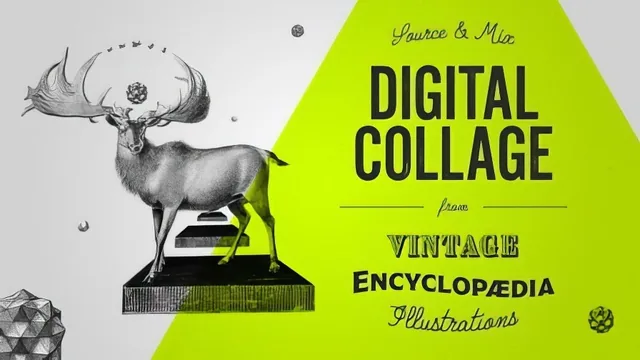
A tight seven-lesson walkthrough of turning free vintage encyclopedia scans into finished Photoshop collages, from licensing to print-ready export.
A practical, tool-by-tool workflow
This class is built around a single repeatable pipeline: find a free vintage illustration, cut it out cleanly, combine it with others, and export it for print or web. It does not dwell on theory. Each of the seven lessons maps to one stage of that pipeline, and the pacing reflects real production work rather than a curated demo reel.
The licensing lesson deserves credit for going further than most "free stock" tutorials. It distinguishes between images that are fully public domain, ones under a Creative Commons Attribution license that only require credit, and ones under Attribution-NonCommercial-ShareAlike terms that block resale of derivative work. For anyone planning to sell prints or t-shirts off the back of this class, as the course explicitly encourages, that distinction is not a footnote. It is the difference between a legitimate side income and a takedown notice.
The cutting-out lesson is the technical core of the class and the strongest stretch of teaching. Rather than picking one method and moving on, it walks through Magic Wand, Quick Selection, Magnetic Lasso, and Select Color Range as the fast-but-imprecise options, then pivots to Polygonal Lasso and the Pen tool as the methods worth mastering for final work. The advice to cut small sections of background at a time with the Polygonal Lasso, rather than attempting one continuous loop around a complex object, is the kind of hard-won practical tip that separates a working method from a theoretical one. Toggling the cutout against white, black, and a bright color layer to spot leftover edge artifacts is a similarly concrete habit that a beginner would not think to build on their own.
Where the assembly stage gets thin
The collage-building lesson covers a lot of ground quickly: linked smart objects, layer ordering, non-destructive adjustment layers, blend modes, and sharpening, all in one pass. The linked smart objects tip is genuinely useful, since it means a flawed cutout can be fixed once and the fix propagates to every copy used across the collage. But the advice on making a collage look organic rather than obviously pasted together, mostly a recommendation to try Multiply, Screen, or Overlay blend modes and see what sticks, is thinner than the cutting-out lesson. It works as a starting point, not as a method someone could apply without a fair amount of independent trial and error.
The final lesson on saving and sharing is short but useful in a different way. It covers the practical differences between preparing a file for a professional print shop versus a home printer versus a print-on-demand platform like Society6, including the reminder not to stretch a modest-resolution image across a poster-sized product. This is the kind of production knowledge that often gets skipped in favor of more visually exciting content, and its inclusion here rounds the class out.
At 29 minutes across seven lessons, nothing here is padded, but nothing gets deep treatment either. Anyone comfortable with Photoshop's core toolset will pick up a genuinely useful method quickly. Anyone still learning what a layer mask does will need to pause frequently or supplement with more basic instruction first.
The standout
The explanation of why and how to use linked smart objects when the same cutout appears multiple times in a collage, since fixing one flawed cutting job then updates every instance automatically.
What you will learn
- Where to find public-domain and Creative Commons vintage encyclopedia illustrations and how to read license terms before using them commercially
- How to set up a project folder structure (originals, cutouts, work-in-progress, final web-ready) that stays searchable months later
- Six ways to isolate an image from its background in Photoshop: Magic Wand, Quick Selection, Magnetic Lasso, Select Color Range, Polygonal Lasso, and the Pen tool, with a clear case for when each is worth the time
- How to build a collage using linked smart objects so a single corrected cutout updates everywhere it's reused
- How to use non-destructive adjustment layers (Levels, Brightness/Contrast, Hue/Saturation) and blend modes like Multiply to make disparate cutouts read as one unified illustration
- How to prepare and export the final piece differently for print (CMYK, printer specs) versus web (RGB, 2x output size) or print-on-demand sites like Society6
Best for: Photoshop users who already know their way around layers and want a fast, repeatable method for producing finished collage illustrations from found imagery.
Skip it if: Total beginners to Photoshop, since the class moves quickly through tool names and shortcuts without pausing to explain the interface itself.