
Social Media Content Creation in Canva: From Beginner to Advanced
Maggie Stara · Creative Marketer & Top Teacher
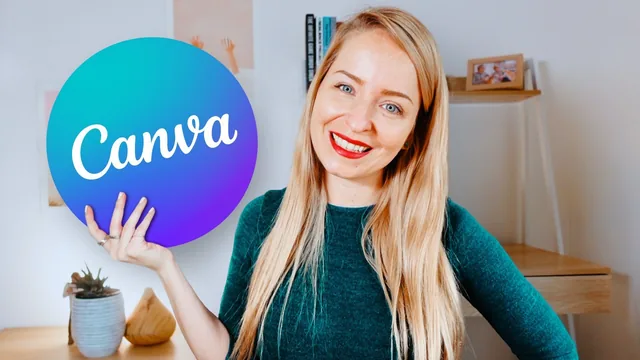
A working Canva teacher walks through her actual production process for a full range of social graphics, not just theory about design principles.
A full production pipeline, not a features tour
This course treats content creation as a system rather than a collection of Canva tricks. It opens with brand fundamentals, color psychology, hex codes, licensing rules for stock images and fonts, before the interface is even opened. That ordering matters. By the time the lessons move into Canva itself, the viewer already knows what a hex code represents, why McDonald's uses yellow and Coca-Cola uses red, and how to check a color palette for accessibility contrast using a free web tool. Skipping straight to software lessons is possible but the course is built so the early foundation pays off later, when brand consistency becomes the throughline for every graphic that follows.
The platform-by-platform lessons are where the course earns its length. Instagram gets the deepest treatment: quote graphics, carousel posts, Reels, transparent-background exports, and a full walkthrough of building Story templates with clickable link stickers, polls, and testimonial screenshots repurposed into permanent highlight covers. YouTube gets two distinct lessons that solve a real production problem: banners must survive three different crop zones (TV, desktop, mobile) without losing key information, and the course walks through building inside Canva's provided safe-zone template rather than guessing at dimensions. Thumbnails get their own lesson focused on legibility at small sizes rather than generic advice to "make it pop."
Where the technique work is genuinely instructive
The strongest material shows a working process rather than a finished result. The looping GIF lesson for LinkedIn is a good example: reversing a clip so it plays forward and back seamlessly, layering a desaturated blurred duplicate behind the original for a shadow effect, and exporting text separately so it survives the loop. None of this is difficult once demonstrated, but it is the kind of technique a self-taught Canva user would not stumble onto alone. The animated email signature lesson, which exports a single graphic element as a small GIF and crops it down to a lightweight file for use in Gmail or Outlook signatures, is a similarly small but genuinely useful trick.
The Magic Design lesson on presentations is more mixed. It is honest about the AI output needing manual cleanup rather than overselling it as a one-click solution, and the layout suggestion feature is a legitimately useful escape hatch for anyone stuck on a slide. But this section reads as an add-on relative to the tightly focused social media lessons that make up the bulk of the course.
Assessment
The course does not oversell itself. It is explicit that most techniques work on the free Canva plan with minor workarounds, and it flags the handful of features that genuinely require Pro. The pacing assumes no prior Canva experience, which means someone already comfortable with the software will find the early lessons slow, though the platform-specific sections later on still hold real value even for confident users.
The class project, a single 1080x1080 Instagram graphic, is a fair capstone given how much of the course is spent on exactly that format, and it gives newer designers a low-stakes way to get feedback before applying these skills to paying client work. For anyone building a consistent visual presence across Instagram, YouTube, and LinkedIn without a design background, this is a thorough and practically oriented course.
The standout
The YouTube channel banner lesson, which shows exactly how to design inside the desktop, tablet, and mobile safe-zone template so a banner does not get cropped or hidden on any device.
What you will learn
- Build a brand color palette using hex codes, Coolors, and Canva's own color tools, then check it for accessibility contrast
- Source properly licensed free images, video, and fonts before designing
- Create Instagram Stories with clickable link stickers, polls, and branded highlight covers
- Design YouTube channel banners that stay readable across mobile, tablet, and desktop safe zones
- Build looping GIFs with color shifts and reversed playback for LinkedIn or Instagram posts
- Use Canva's Magic Design AI tool to generate and then customize a full presentation deck
Best for: Solo business owners, freelancers, and social media managers who want one practical system for producing on-brand graphics across every platform without hiring a designer.
Skip it if: Anyone who already has an established Canva workflow and brand kit, or who wants deep graphic design theory rather than software walkthroughs.