
Procreate Animation for Illustrators: Create Easy GIFs in Procreate 5
Brooke Glaser · Illustrator
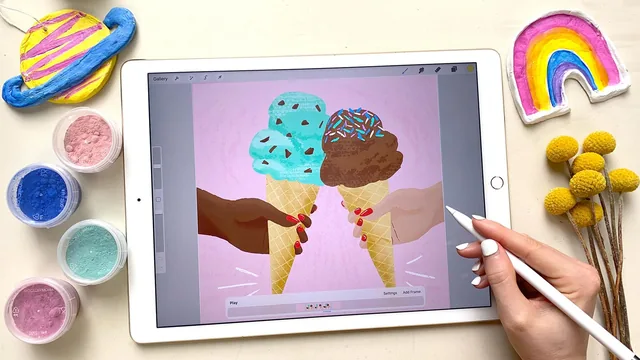
A fast, likable primer on Procreate's frame-based animation tools that suits simple looping GIFs, not anyone chasing sophisticated character animation.
Brooke Glaser's class delivers exactly what its title promises: a fast tour of Procreate 5's animation toolkit aimed at illustrators who want simple motion, not a film school. At under an hour, it moves briskly from interface orientation into eight hands-on exercises, each built around a real illustration (ice cream cones, a witch character, a teapot with rising steam, a girl floating on balloons). The structure is sound: a tools overview lesson up front, followed by three animation categories, each paired with worked examples using downloadable exercise files.
What it actually teaches
The core lesson on Animation Assist covers real, non-obvious mechanics: Procreate treats a grouped layer as a single frame, duplicate frame lets you build on a prior pose instead of redrawing everything, and background/foreground pinning keeps static elements (a textured backdrop, a monkey sitting on a shoulder) from flickering across the loop. Onion skinning gets a genuinely useful explanation, including the color-coding that distinguishes frames that already played from frames still coming, and the blend primary frame option that turns the current frame semi-transparent so subtle changes, like eyes closing, stay visible against what came before.
The three animation types give the class its spine. Position animation is the simplest, just moving or rotating existing artwork, and the guided motion exercise elevates it by having Glaser draw a curved path first and match a floating figure's tilt and spacing to that line. Transformations cover opacity flicker (used for a glowing pumpkin, with hold-frame timing added to avoid a stiff strobe effect), scale changes (bubbles growing as they rise), the Liquify tool for smoke and steam, and layer masking for a spoon that appears to dip into tea. Redrawn animation, the most labor-intensive category, is kept deliberately light: blinking eyes and a wiggly hand-lettered phrase, both explicitly framed as achievable without serious drawing skill per frame.
Where it holds up and where it thins out
The exercises succeed because they show decision-making, not just button presses. When Glaser lowers the onion skin count from several frames to one because the balloon animation got visually cluttered, or switches between loop and ping-pong playback depending on whether an action reads the same forwards and backwards, the class is teaching judgment, not just mechanics. The final export lesson is unusually practical, covering GIF file size limits, dithering artifacts at small sizes, and a workaround for Instagram's three-second minimum video length using the iPad's built-in screen recorder.
The class narrows its own scope deliberately, and that is both its strength and its ceiling. Every technique assumes artwork that is already drawn and cleanly layered, and the prep lesson on separating a finished illustration into animatable pieces is short given how much later ease depends on getting that step right. Viewers with no illustration to animate get exercise files to practice on, but anyone hoping for guidance on drawing appealing motion from a blank canvas will find that outside the class's remit. As a focused add-on skill for artists already comfortable in Procreate, it earns its short runtime.
The standout
The guided motion technique, drawing a rough path line first and matching frame positions and tilt to it, turns a vague 'make it float' idea into a concrete, repeatable workflow.
What you will learn
- How to turn on Animation Assist and treat layer groups as individual frames
- How to use duplicate frame, hold frame, background/foreground pinning, and onion skinning to build motion efficiently
- How to animate three motion types: position shifts, transformations (opacity, scale, liquify, masking), and full redraws (blinking, wiggly lettering)
- How to use guided motion lines to plan curved paths like a floating balloon figure
- How to prep a finished illustration (separating and merging layers) before animating it
- How to export as GIF, PNG, or MP4 and work around Instagram's video-length minimum using a screen recording trick
Best for: Illustrators who already know basic Procreate navigation and want to add light, loopable motion to existing artwork without learning a dedicated animation program.
Skip it if: Anyone hoping to learn character rigging, complex multi-layer animation, or animation principles from scratch, since the class explicitly avoids labor-intensive work.