
Mastering Gradients in Adobe Illustrator
Evgeniya & Dominic Righini-Brand · Graphic Design & Photography
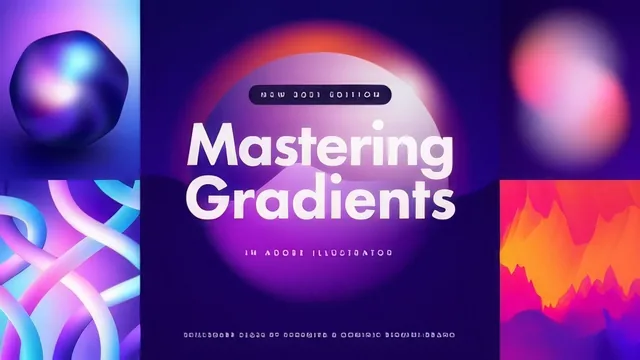
A patient, technique-dense walkthrough of every gradient tool in Illustrator, built for designers who already know their way around the software.
Gradients sound like a narrow topic for a nearly four-hour class, but this course treats them as a full subsystem of Illustrator, and it largely earns that scope. It opens not with a tool but with color theory: why blending complementary colors head-on produces a muddy grey midpoint, why RGB and CMYK behave differently under averaging, and why color banding shows up in flat, low-contrast transitions. That grounding matters, because most gradient tutorials skip straight to dragging handles and leave students to discover murky midpoints the hard way.
Building the toolkit before using it
The early lessons spend real time on the Colour Guide panel, showing how to generate palettes from harmony rules like Pentagram and Analogous, then convert every swatch to a Global color so a single edit ripples across a whole design. This is infrastructure work, not gradient work exactly, but it pays off later when the course starts layering many gradient objects together and needs consistent, editable color across all of them. Students who skip ahead to the tool-specific lessons without doing this setup will likely find the later sections harder to follow.
Tool coverage is the real spine of the class
From there the course moves methodically through every gradient mechanism Illustrator offers: the Gradient panel and Gradient tool for fills, Freeform Gradients for organic point-based blends, gradients applied to editable type and across grouped objects, and then a long stretch on stroke gradients, split into within, along, and across variants, each with its own quirks around linear versus radial spread and how rotation affects the angle. The stroke section is unusually thorough, including a workaround for building gradient brushes from blended shapes for anyone on an older Illustrator version without native stroke gradient support.
The Gradient Mesh material is where the class gets genuinely advanced. Building a mesh, adding and deleting mesh points, adjusting opacity per point, and then distorting the whole structure with Warp, Twirl, Crystallise, and Wrinkle is a technique set that goes well beyond what most Illustrator courses touch. The instructor's advice to keep mesh point density low to avoid crashing Illustrator, and to always keep a backup copy before distorting, reads as hard-won practical knowledge rather than boilerplate caution.
Where it earns its rating, and where it doesn't
The closing stretch on blending modes, layered opacity masks, and Gaussian blur for smoothing rough freeform or mesh gradients rounds out the technique library well, and the final lessons on exporting correctly for RGB versus CMYK output are a genuinely useful, often-skipped topic in design education. The weakness is pacing rather than content: at over twenty lessons with a class project that is essentially open-ended experimentation, there's no single throughline project to anchor all these techniques together, so the class works better as a reference library to dip into than a single sitting to complete. It also assumes real comfort with Illustrator's panels and shortcuts from the first lesson, so anyone still learning the basic interface will struggle to keep up. For an intermediate or advanced user who already fights with dull gradients and color banding, though, this is one of the more complete technical treatments of the subject available.
The standout
The gradient mesh distortion section, where Warp, Twirl, Crystallise, and Wrinkle are applied to a mesh's points to produce organic, painterly colour fields that a plain linear or radial gradient cannot replicate.
What you will learn
- How to build harmonious colour palettes for gradients using the Colour Guide's harmony rules and convert them to Global colours for fast recolouring
- How to set up and edit fill gradients with the Gradient panel and Gradient tool, including multiple gradients within one object and gradients on type
- How to apply gradients within, along, and across strokes, plus build custom gradient brushes for use with the Paintbrush tool
- How to build and distort Gradient Meshes with the Warp, Twirl, Crystallise, and Wrinkle tools to create organic, non-linear colour transitions
- How to combine Blending Modes, opacity masks, and layered gradient copies to create depth, highlights, and complex colouring effects
- How to prepare and export finished gradient artwork correctly for both RGB digital use and CMYK print, including colour banding fixes
Best for: Illustrator users who already know their way around the interface and want a deep technical upgrade specifically on colour transitions, not a beginner learning the program from scratch.
Skip it if: Complete Illustrator beginners, and anyone hoping for a fast, single-technique tutorial rather than a full 20-lesson technical curriculum.