
iPad Surface Design in Affinity Designer: Vectors, Textures, Artboards, and Repeat Patterns
Liz Kohler Brown · artist | designer | teacher | author
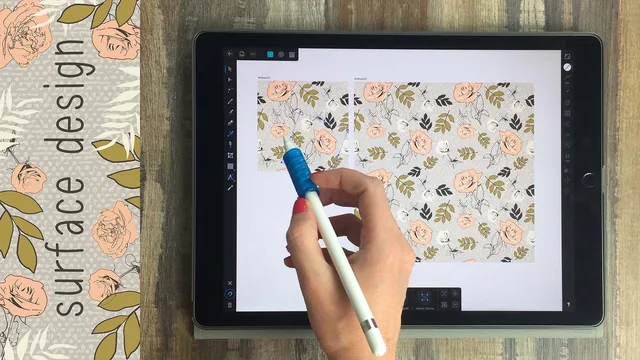
A thorough, hands-on walkthrough of Affinity Designer on iPad that turns raw photos into seamless vector repeat patterns, if you already know your way around design apps.
This class sets out to answer a specific, practical question: how do you take an iPad, a stylus, and a stack of reference photos and turn them into a repeating surface pattern that could go straight onto a Spoonflower listing or a client's fabric swatch. It answers that question thoroughly, walking through the entire pipeline from a blank artboard to a finished half-drop repeat, and it rarely skips a step along the way.
A methodical build from the ground up
The course opens with a comparison of vector and raster images that most viewers with any design background will already know, but it earns its place because everything that follows depends on the distinction. From there, the instructor moves into the Affinity Designer interface itself: the gallery, the settings panel, undo limits, canvas rotation, font import. This is unglamorous groundwork, but it pays off later when the pace picks up and the lessons stop re-explaining basic navigation.
The color palette lesson is a good example of the class's strength. Rather than just saying "pick some colors," it shows a concrete workflow: pull hues from a sunflower photograph with the eyedropper, adjust them on the color wheel for variation, then save the set as a reusable application-wide palette. That kind of specific, repeatable process runs through most of the class, from setting a 2000 by 2000 pixel master document (with an explicit warning to always work in pixels, since other units caused repeat misalignment for the instructor) to duplicating shapes with a two-finger drag.
Where the real value sits
The middle stretch, covering texture creation, is the most technically interesting part of the course. Turning a photograph into a seamless raster texture by duplicating it into four quadrants, merging them, and hand-painting over the seams with a matched brush is a legitimately useful trick, and the follow-up lesson on converting that same texture into a vector using a third-party app called Imaengine adds a layer most surface-pattern tutorials skip entirely. The tradeoff, that vector textures from complex photos can overwhelm the iPad's processing power, is stated plainly rather than glossed over.
The repeat-building lessons are where the course delivers on its title. The basic repeat teaches straight duplication and pixel-exact offsetting to make edges match. The half-drop repeat that closes out the project work builds on that by offsetting elements by half the canvas height on one axis, which is what actually disguises the repeat seam and separates an amateur pattern from a professional one.
The course does lean heavily on demonstration over explanation in its later stretches, moving quickly through asset categories, layer groupings, and shape adjustments with less pause for why a given choice was made. A viewer who has not built up comfort with Affinity's layers panel and its artboard-versus-group hierarchy by that point may find the back half harder to follow than the first. It also assumes access to a second app, Imaengine, for photo-to-vector conversion, which is a reasonable but unavoidable dependency outside Affinity itself.
As a complete package, the course does what it promises. It is not a gentle introduction to digital drawing, but for someone who already has the app and some vector experience, it is a genuinely useful, technique-dense path from a photo folder to a finished, sellable repeat pattern.
The standout
The half-drop repeat construction, where duplicating elements down by the canvas height and sideways by half that amount produces a pattern with no visible seam, is a genuinely transferable technique worth the price of admission alone.
What you will learn
- Build custom color palettes from a photograph using the eyedropper and swatch/asset panels
- Set up artboards with the correct pixel dimensions for live pattern previewing
- Draw and edit vector shapes with the pen, pencil, and brush tools, including corner and stroke settings
- Convert photo textures into seamless raster and vector repeat elements using duplication, merging, and the Imaengine app
- Assemble a basic side-by-side repeat by duplicating and offsetting elements by exact pixel values
- Build a half-drop repeat that hides the seam by offsetting elements diagonally instead of straight across
Best for: Intermediate iPad artists who already own Affinity Designer and want a structured method for turning drawings and photos into sellable, seamless surface patterns for print-on-demand or licensing.
Skip it if: Complete beginners to digital illustration or anyone without an iPad and stylus, since the course assumes comfort with layers, vector basics, and app navigation from the first video.