
Introduction to Adobe After Effects: Getting Started with Motion Graphics
Evan Abrams · Maker of Motion Graphics and After Effects Teacher
A patient, hands-on walk through After Effects fundamentals that builds one real lower third rather than dabbling across features
Evan Abrams built this course around a single, sensible constraint: instead of touring After Effects feature by feature, he makes one thing, a lower third, and lets every tool get introduced because the project actually needs it. That decision shapes the whole two-hour runtime and mostly pays off.
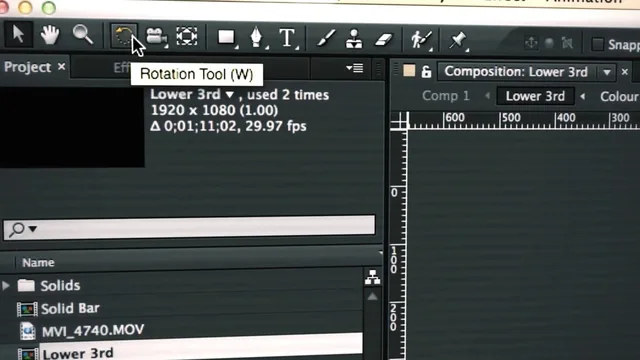
The opening stretch is unglamorous but necessary. Abrams walks through the Project, Composition, and Timeline panels, explains why he resets the workspace to Standard so extra palettes do not confuse a beginner, and spends real time on frame rate matching when importing footage. He is explicit about a common beginner trap here: matching the composition's frame rate to the footage's exact rate (23.976, not a rounded 24) to prevent dropped frames. It is a small detail, but it is the kind of thing tutorials aimed at "getting started" often skip and beginners pay for later.
Where the teaching gets specific
The middle lessons cover shape layers, and Abrams is careful about a distinction that trips up a lot of new users: the difference between a layer's transform properties and the properties inside a shape's contents, such as a rectangle path. He shows how scaling a path's width and height inside its contents behaves differently from scaling the whole layer, and why confusing the two leads to keyframing the wrong property later. This is not flashy content, but it is the kind of structural clarity that prevents hours of confusion down the line.
The animation lessons build from there with concrete technique. He duplicates a single rectangle path into four thinner bars, offsets each one's position keyframes in time, then pulls their easing curves in the graph editor to create a staggered slide-in effect. It is a legitimate small technique, cheap to reproduce, and it demonstrates keyframing, the graph editor, and copy-paste of animation data all in one motion.
The most useful single idea in the course is the pick-whip expression trick for text. Abrams sets up multiple duplicated text layers with different colors and offsets, then uses an expression to make each layer's source text reference one master layer, so retyping a name in one place updates every copy. It is a real production habit, not a beginner gimmick, and it is presented with enough context (why lower thirds get edited repeatedly for new speakers) that the reasoning sticks.
What holds it back
The course thins out toward the end. Embellishments like drop shadows, glows, and wiggle expressions get demonstrated quickly without much explanation of when or why to reach for them, and the export lesson, while accurate on render settings, codecs, and the difference between the render queue and Adobe Media Encoder, reads more like a reference dump than a taught concept. Abrams also talks quickly and assumes a fair amount of prior comfort with keyboard shortcuts and menu navigation, which suits someone following along in the software but works less well as a passive watch.
As a first course in After Effects, this earns its place. It gives a beginner one complete, professionally relevant project, explains the reasoning behind a handful of habits that actually matter, and avoids padding. Anyone past the absolute basics will find little new here, but for someone opening the program for the first time, it is a credible starting point.
The standout
The pick-whip expression trick that links multiple text layers to one source so editing a name updates every instance at once.
What you will learn
- Navigating the After Effects interface, workspaces, and importing footage at the correct frame rate
- Creating and structuring shape and text layers with clean transform versus content properties
- Setting position, scale, and opacity keyframes, then smoothing motion with easy ease and the graph editor
- Building staggered multi-part animations using duplicated shape paths offset in time
- Linking editable text across layers with pick-whip expressions so one edit updates them all
- Adding adjustment-layer color correction, secondary motion, and exporting through the render queue or Media Encoder
Best for: Someone who has never opened After Effects and wants a single guided project to learn the interface, layers, and keyframing by making something real.
Skip it if: Anyone who already understands keyframes and the timeline and wants advanced compositing, 3D, or effects work, since this stays at the fundamentals.