
Intro to Surface Pattern Design: Learn Adobe Illustrator
Bonnie Christine · Surface Pattern Designer + Artist
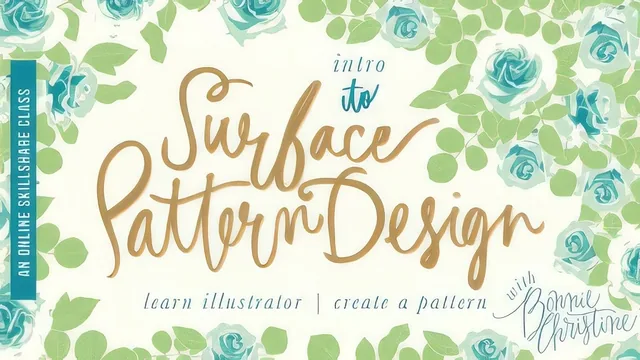
A 2015 Illustrator-fundamentals course wrapped in surface pattern design branding, worthwhile mainly for the vector tool drills, not the pattern-making itself.
What it actually teaches
This course bills itself as an introduction to surface pattern design, but the bulk of its nearly four hours is a straightforward Adobe Illustrator tutorial. The first eleven lessons cover workspace setup, zooming, the direct and lasso selection tools, the pen and pencil tools, the blob brush, rotate and reflect, swatches, groups, the Pathfinder panel, and layers, in that order, each treated as its own short video. Only after that does the course pivot to sketching, gathering inspiration, and building a moodboard, before finally walking through three different paths into finished artwork: tracing sketches with the blob brush and pen tool, running scanned line art through Image Trace, and drawing shapes natively inside Illustrator using effects and the Symbol Sprayer. The final stretch shows how to tile a motif into a repeating square, preview it as a swatch, and export it as a web-ready JPEG or PNG.
The teaching method is screen-recorded, tool-by-tool demonstration with a live voiceover narrating every click and keyboard shortcut. This works well for Illustrator novices because nothing is assumed. Keyboard shortcuts (Command-Space for zoom, Q for lasso, P for pen, Shift-B for blob brush) are called out repeatedly rather than mentioned once and forgotten, and a printable shortcut reference ships with the downloads. The Image Trace and Simplify demonstrations are genuinely useful: reducing an illustration from 490 anchor points to 189 by adjusting curve precision is a concrete, transferable skill that applies to file cleanup well beyond pattern work.
Where it falls short as a pattern design course
The actual pattern-building technique taught here is thin. The method shown is manual: copy a motif, paste it behind, nudge it by a fixed pixel offset, delete duplicates, and drag the result into the swatches panel to preview the tile. There is no explanation of drop repeats, half-drop or brick layouts, or how to avoid visible seams at the tile edge, which are the core technical concerns of professional surface pattern work. Anyone hoping to learn the craft of repeat construction, rather than a rough approximation of it, will need to look elsewhere or wait for the promised sequel course.
The course also carries a personal-narrative thread, an extended account of the instructor's career path from an Etsy apron shop to licensed fabric lines, that runs long relative to its instructional value. It is honest and specific about the timeline, which gives it some credibility, but it displaces time that could have gone to pattern mechanics. The course is archived and dates to 2015, so references to specific Illustrator dialog layouts and menu paths may not match current versions exactly, though the underlying tool logic (pen tool curve handles, Image Trace thresholds, Pathfinder operations) has changed little.
Overall, this earns its keep as a beginner-friendly Illustrator primer with a craft flavor, not as a rigorous pattern design curriculum. Treat the pattern-making lessons as a light introduction to the idea of tiling, and rely on the tool-drilling lessons for the actual skill transfer.
The standout
The Image Trace workflow for turning a scanned ink sketch into a clean, ungrouped vector illustration is the one technique worth the price of admission on its own.
What you will learn
- Set up a custom Illustrator workspace and save it as a reusable preset
- Use direct and lasso selection, pen, pencil, and blob brush tools to build clean vector line art
- Turn hand sketches or photos into vectors with Image Trace, then simplify and clean up anchor points
- Build custom color palettes and use the Recolor Artwork and Live Paint Bucket tools to fill illustrations
- Assemble a basic repeating pattern by offsetting and tiling motifs inside a bounding square
- Export finished patterns as web-ready JPEGs or PNGs with an optional watermark
Best for: A total beginner to Adobe Illustrator who wants a slow, tool-by-tool walkthrough before attempting any pattern work.
Skip it if: Anyone who already knows Illustrator's basic toolset, or anyone expecting to learn actual repeat-pattern math (offsets, brick repeats, half-drops) in depth.