
Intro to Motion Graphics: Logo and Icon Animation in After Effects
Hongshu Guo · Motion Designer
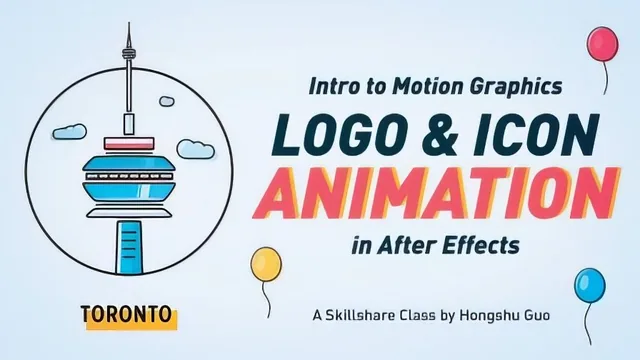
A six-year agency motion designer walks through animating one CN Tower logo start to finish, teaching track mattes, staggered timing, and graph editor speed curves along the way.
This course picks one project, a stylized CN Tower icon with balloons, a sun, and lettering, and animates every piece of it on camera, using that single build to teach the workflow a working motion designer actually uses.
Structure and workflow
The course opens where most tutorials skip: file prep. Before anything moves, the instructor shows how to release a single flattened Illustrator layer into separated, individually selectable layers, then bring that file into After Effects and immediately organize it into assets, precomps, and final comp folders. Two full lessons go to renaming and precomposing dozens of raw layers into named, grouped elements. It is not glamorous, but it mirrors how a real project file gets built, and it pays off once the animating starts, because every element the instructor reaches for already has a sensible name and its own composition.
The animation lessons follow a repeatable pattern: pick an element, set a start and end keyframe, add an overshoot a few frames before the end, apply Easy Ease, then open the Graph Editor and drag the speed curve to add snap. This pattern gets applied to the tower's base, pole, center window, and top needle in sequence, with each new layer staggered slightly behind the one before it so the whole tower builds with overlapping action instead of everything landing at once. Once the pattern is established, later sections (the balloons, the clouds) move faster because the technique is already familiar, which keeps the back half from feeling repetitive despite reusing the same core method.
Techniques worth naming
Track Matte is the load-bearing concept of the course, introduced deliberately on a disposable test composition (a word masked by a rectangle) before being applied for real. Once demonstrated, it becomes the tool used to reveal the pole, the tower base, the center window sections, and the text, each sliding in and being clipped by an Alpha Inverted Matte layer. The sun-and-circle sequence adds a second real technique: converting an Illustrator shape into a shape layer to unlock Trim Paths, then hand-drawing an open Pen tool path for the sun to travel along using a copied position keyframe. The text reveal lesson is the most transferable single lesson in the course, a simple trick of duplicating a text layer once per letter, masking each duplicate down to one character, cutting them to a single frame apiece, and using Sequence Layers to auto-stagger them into a bouncy letter-by-letter entrance that can be applied to any word.
Where it comes up short
The course is explicit that this is intermediate material, and it holds to that promise in ways that will frustrate a true beginner: keyboard shortcuts, panel names, and menu paths fly by quickly, and concepts like separating position dimensions or reading a speed graph are explained once and then assumed. A short sponsor break for the instructor's paid community sits mid-course, which briefly interrupts the build. The export lesson is thin, covering GIF and MP4 output in a couple of minutes without touching compression settings or color management. What the course delivers well is repetition with purpose: by the fourth or fifth element animated the same way, the pattern of keyframe, overshoot, ease, and matte becomes second nature, which is exactly the muscle memory a logo animation specialist needs.
The standout
The Track Matte walkthrough, demonstrated first on a throwaway test composition before being reused on nearly every element in the logo, is the one concept that unlocks the rest of the course.
What you will learn
- Preparing layered artwork in Illustrator (Release to Layers) before bringing it into After Effects
- Organizing and renaming a messy layer stack into precomps, folders, and a clean project panel
- Using Track Matte (Alpha Matte and Alpha Inverted Matte) to reveal shapes as they slide into frame
- Building overshoot and easing into position and scale keyframes using the Graph Editor's speed graph
- Animating a circle reveal and orbiting sun using Trim Paths and a custom motion path
- A quick per-letter text reveal technique using masks, sequence layers, and staggered timing
Best for: Designers with some After Effects and Illustrator familiarity who want a full, real project workflow for animating a logo rather than isolated tool tips.
Skip it if: Complete beginners to After Effects who have never set a keyframe or opened the Graph Editor, since the pace assumes existing comfort with the interface.