
How to Digitize Watercolor Illustrations (Beginner)
Audrey Moon · Watercolorist and Modern Calligrapher
Worth it only if you already own Photoshop and Illustrator, otherwise the 80 minutes teach little else.
What the course actually walks through
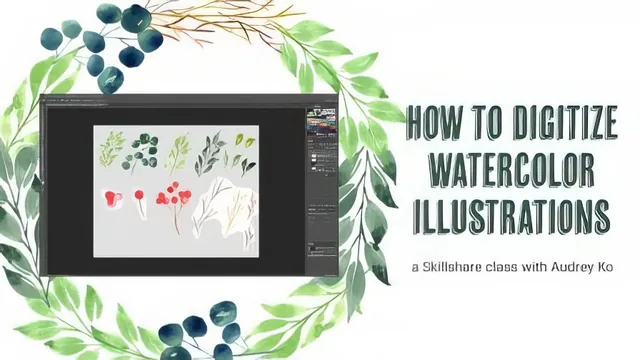
This class has one real job: take a scanned watercolor painting and turn it into layered, editable vector art. It does that job in order, and the order matters more than any single lesson. A short painting session produces a set of individual leaves, berries, and branches. Everything after that is process: scan at 600 DPI, open and rotate the file in Photoshop, duplicate the background layer so nothing destructive happens to the original, then strip out the watercolor paper texture using Levels first and manual erasing second. The course then offers two ways to finish that cleanup, the magic wand and the magic eraser, both explained in enough operational detail (tolerance settings, contiguous selection, zooming to catch missed spots) that a beginner could follow along without guessing.
The second half moves into Illustrator, where each cleaned element gets traced into vector paths using Image Trace's high-fidelity photo preset, expanded, and stripped of its white background. From there, the course teaches a small toolkit of transforms, rotate, reflect, arc warp, bulge warp, that let a handful of painted shapes multiply into visual variety. That toolkit gets applied directly in two build-along projects: a circular wreath and an asymmetrical corner accent, both constructed against a locked guide shape so elements can be nudged into place without accidentally moving the frame.
Where it earns its runtime, and where it doesn't
The structure works because it treats digitizing as a repeatable pipeline rather than a one-off trick, and the wreath and corner-accent builds give that pipeline a visible, satisfying payoff. Watching a flat, textured scan become clean vector shapes arranged into a finished composition is the strongest argument for the class.
The weak spot is pacing. Four separate lessons on erasing paper texture cover essentially two techniques, and the difference between them, magic wand versus magic eraser, could have been one lesson instead of two. The painting lesson itself is thin, more of a demonstration than instruction, which makes sense given the course's real focus but means the Skillshare description's emphasis on painting oversells that portion. There is also a hard software gate: without Photoshop and Illustrator, none of the second half is usable, and the class does not meaningfully engage with free alternatives.
For a painter who already has the Adobe subscription and wants to license or reuse their watercolor work digitally, the 80 minutes deliver a legitimate, followable workflow with a real finished output at the end. For anyone hoping to learn watercolor painting, or hoping to digitize without paying for Adobe software, this is not the right class.
The standout
The clearest payoff is the Image Trace workflow in Illustrator: switching to color mode with the high-fidelity photo preset, expanding the resulting paths, then deleting the white background, since it is the single technique that actually converts a scanned painting into scalable, print-ready vector art.
What you will learn
- Cleaning a watercolor scan by adjusting Levels, then stripping the remaining paper texture with the eraser, magic wand, or magic eraser tools
- Isolating individual painted elements onto separate Photoshop layers and syncing them to a Creative Cloud Library for reuse
- Vectorizing painted artwork in Illustrator with Image Trace's high-fidelity photo preset, then expanding paths and deleting the white background
- Reshaping vector shapes with Warp effects like arc and bulge, plus rotate and reflect transforms, to generate variety from a small set of painted elements
- Arranging isolated graphics into a circular wreath and an asymmetrical corner design using locked guide shapes
- Exporting finished vector art as JPEG or PNG and knowing which format fits which use case
Best for: Watercolor painters who already own Photoshop and Illustrator and want a concrete pipeline for turning painted elements into reusable vector graphics for products like stationery, apparel, or mugs.
Skip it if: Anyone without an Adobe subscription, anyone looking for painting instruction, or anyone who wants a quick single-tool digitizing shortcut rather than a full scan-clean-vectorize-arrange pipeline.