
Gritty Newsprint Effect in Adobe Photoshop
Evgeniya & Dominic Righini-Brand · Graphic Design & Photography
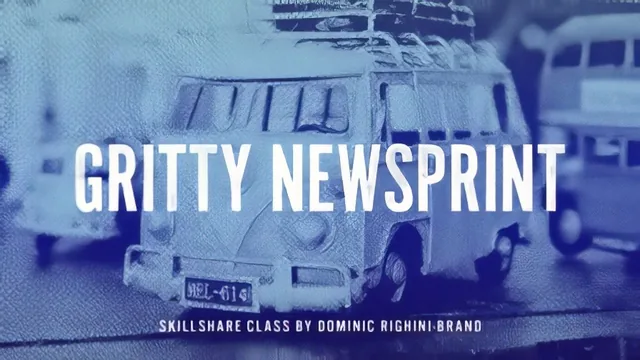
A tight 36-minute Photoshop technique class that teaches one specific gritty halftone effect, not general design skill.
"Gritty Newsprint Effect in Adobe Photoshop" is a narrow, technique-focused class built around a single non-destructive filter recipe. Over sixteen short lessons and 36 minutes, Dominic Righini-Brand builds a halftone-and-grain look using Photoshop's Filter Gallery, then shows how to carry that same look across photographs, typography, and vector shapes. There is no broader design theory here and no discussion of composition or layout. The entire class is a build log for one effect and its variations.
The core technique
The method centers on stacking two Filter Gallery effects, Halftone Pattern and Reticulation, inside a smart filter applied to a smart object. Reticulation is doing most of the aesthetic work, since it reads the image's lightness and contrast to simulate the clumped grain of an old photographic print, while the halftone pattern layer adds the dot structure. Working through both settings side by side, with visibility toggled independently, is a genuinely useful workflow habit, and the specific numbers given (dot size and contrast around 5, reticulation density around 14, foreground and background levels around 8) give viewers a concrete starting point rather than a vague "adjust to taste." The choice to build everything on a large A3-format canvas so the grain has room to scale down convincingly is a small but smart piece of production advice that a lot of tutorials skip.
Coloring and reuse
Three separate coloring methods get covered: Gradient Map adjustment layers, solid color fill layers with blending modes, and a more advanced fill-plus-Blend-If approach that lets a background show through the transparent areas of the effect, mimicking an overprinted poster. This third method, which requires grouping the smart object and Alt-clicking to clip a gradient fill above it, is the most sophisticated part of the class and the one most likely to produce results that look genuinely different from a generic Instagram filter. The type and graphics half of the course reuses the same filter stack but adds Ripple, Median noise, Torn Edges, and Difference Clouds to rough up otherwise-flat vector edges, plus an Inner Glow trick to break up dot uniformity. It is a clever chain of filters, though it asks the viewer to hold a lot of moving settings in their head at once.
Where it falls short
The class assumes real Photoshop fluency. Smart objects, clipping masks, layer groups, and Blend If are all used as tools rather than taught as concepts, so anyone shaky on those fundamentals will lose the thread fast. The pacing is also uneven: file setup and smart object creation get a slow, careful walkthrough, while the randomizing and type-imperfection lessons compress several filter changes into a couple of minutes each. There is no finished poster or composed project shown as an end goal, so learners are left to imagine their own application rather than following a complete example through to a final layout.
For an intermediate Photoshop user who wants a specific, screen-print-style grain effect they can drop into portrait or documentary photography and matching type work, this delivers exactly what it promises in under 40 minutes. It is not a course to learn Photoshop fundamentals from, and it is not really about design decisions at all. It is a filter recipe, clearly demonstrated, with just enough flexibility built in to adapt to other images once the first one is understood.
The standout
The Blend If technique for coloring an image while keeping it see-through onto a background, using smart objects grouped and clipped for overprint-style layering, is the most transferable skill in the class.
What you will learn
- Building a two-layer Filter Gallery stack (Halftone Pattern plus Reticulation) as a non-destructive smart filter effect
- Setting up files and smart objects so the effect can be swapped onto new images without rebuilding it
- Coloring the black-and-white texture with Gradient Map adjustments, solid fill blending modes, and Blend If settings
- Applying the same halftone grain to solid-color type and vector shapes using Ripple, Median noise, Torn Edges, and Difference Clouds
- Randomizing and varying the type texture using Difference Clouds re-rendering and Inner Glow interactions
- Exporting and resizing the finished effect for web or print output
Best for: Photoshop users already comfortable with layers, smart objects, and filters who want a specific, reusable printmaking-style texture for photos or lettering.
Skip it if: Photoshop beginners unfamiliar with smart objects, layer groups, or blending modes, since the class moves through those concepts quickly without explaining the underlying tools.