
Graphic Design for Beginners: Design Realistic Package Mockups in Adobe Photoshop
Derrick Mitchell · Designer | Teacher | Artist | Innovator
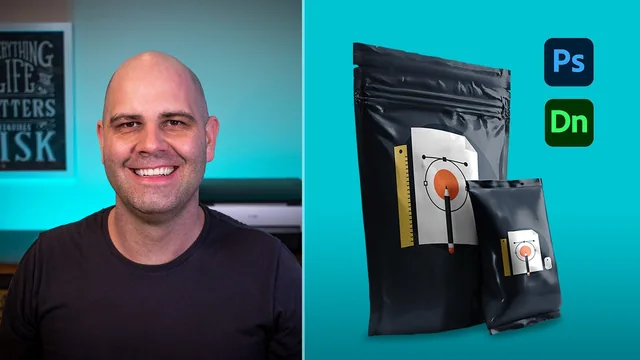
Delivers genuinely reusable Photoshop mockup techniques built on paid templates, but never touches actual packaging structural design.
What it actually teaches
The course opens with a distinction worth the price of admission alone: the difference between a packaging mockup and a press-ready file. Derrick Mitchell uses a real $30,000 print job to make the point concrete, then draws a hard line around scope. This is not a course about laying out a box for print. It is a course about making a box look convincingly real on screen before anyone commits money to it. That framing pays off, because everything that follows stays disciplined about it.
The middle section is the most practical part of the course. It walks through downloading premium PSD templates from Envato Elements and Adobe Stock, including a genuinely useful warning about which listings are editable Photoshop files versus flat JPEGs dressed up as templates. From there it moves into editing smart objects directly, swapping logos, refilling base colors, and troubleshooting a real problem: a template with a broken color profile that made blues render wrong until reassigning it from sRGB Linear to standard sRGB. That kind of workaround, the sort of thing you only learn by hitting the wall yourself, is where the course earns its keep.
Building mockups from scratch
The back half deconstructs a template rather than just using one. Starting from a rendered 3D shape pulled out of Adobe Dimension, the course shows how to place artwork as an embedded smart object, warp and skew it into place across curved panel edges using Free Transform and the Warp tool, then clean up overlaps with layer masks, brushes, and the pen tool. It is fiddly, hands-on work, and the course does not pretend otherwise. There is real value in watching a mistake get corrected in place, such as a smart object losing its link after being duplicated the wrong way, since that is exactly the kind of error a self-taught designer would otherwise puzzle over alone.
The shadow and highlight technique that follows is the strongest single lesson. Desaturating a duplicate of the render, pushing its levels, then recombining it with the base using Linear Burn for highlights and Screen for shadows recovers paper texture and dimensionality that a flat template lacks. Backgrounds get similar treatment, with gradient vignettes and a lens blur driven by a depth alpha channel to simulate a shallow depth of field.
Where it falls short
The course leans on paid assets throughout, so a learner without an Envato or Adobe Stock subscription needs to budget for templates before following along fully. Several tangents, including scripting mockups for resale and deeper color management, get waved off as beyond scope, which is honest but leaves gaps for anyone hoping for a complete workflow. And despite its "for beginners" title, it moves quickly through layer masks, blend modes, and smart objects, assuming a working familiarity that a first-time Photoshop user won't have. Treated as an intermediate class in a narrow specialty rather than a beginner course, it delivers exactly what it promises.
The standout
The shadow-and-highlight pass, duplicating a desaturated render, pushing contrast with Levels, then layering it back in with Linear Burn and Screen blend modes, turns a flat digital box into something that reads as photographed.
What you will learn
- How a mockup differs from a press-ready print file, and why that distinction matters when quoting clients
- Where to source editable PSD templates on Envato Elements and Adobe Stock and how to spot non-editable JPEG traps before paying
- How to update smart-object templates fast with new logos, colors, and text without rebuilding the file
- How to reverse-engineer a template by warping and masking a flat 3D render from Adobe Dimension onto box panels
- How to fake realistic depth using duplicated, desaturated layers set to Linear Burn and Screen blend modes
- How to export a finished mockup with correct sRGB conversion and flattening so smart objects scale cleanly
Best for: Designers who already know their way around Photoshop layers, masks, and smart objects and want a repeatable system for turning flat artwork into client-ready or portfolio-ready packaging visuals.
Skip it if: Total Photoshop beginners who haven't used layer masks or smart objects before, and anyone hoping to learn actual dieline or structural packaging design rather than surface mockups.