
Drawing in Procreate! Learning the Basics. Tutorial 1: Brushes & Gestures. Tips&Tricks for Beginners
Lettie Blue · Architect & Digital Illustrator
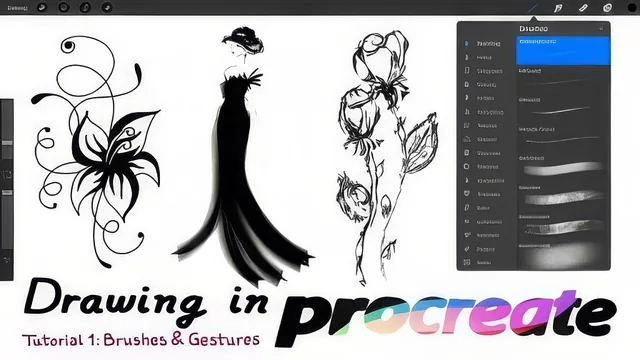
A brisk 94-minute orientation to Procreate's interface and brushes, useful mainly for its offline gesture reference and finger-slip fix.
Two versions, one lesson
This is the opening chapter of a ten-part Procreate series, and it spends its entire runtime on orientation rather than drawing technique. The course is split into two parallel tracks, one recorded in Procreate 4 and one in Procreate 3, so a viewer picks whichever version matches their installed app and watches four videos: interface, gestures, brushes, and a class project. Because both tracks cover identical ground with only minor interface differences, anyone who watches only their relevant half is really getting a 45-to-50-minute course, not a 94-minute one. That structure is sensible for a fragmented app landscape, but it also means the course pads its stated length with a near-duplicate copy of itself.
The interface lesson walks through the gallery screen: selecting artwork, stacking pieces into groups, importing and exporting files by drag-and-drop, and building a canvas from a preset or custom pixel size. It then moves into the toolbar, covering brush size and opacity sliders, the eyedropper, and the customizable quick-menu button. Useful but unremarkable ground, most of it discoverable by tapping around the app for ten minutes.
The gestures lesson is the most reference-worthy portion. It runs through one-finger drawing and straight-line snapping, two-finger undo, three-finger redo and cut/copy/paste, and the four-finger toggle to hide the toolbars. None of this is difficult, but having it demonstrated once and laid out sequentially is genuinely more efficient than hunting through Procreate's own help menu.
Brushes and the calendar project
The brush lesson is where the teaching gets slightly more specific. It shows how pressure and stroke speed change the output of brushes like the HB Pencil, Bonobo Chalk, and Studio Pen, then demonstrates coloring a cherry illustration three ways: pencil texture, flat inked fill, and a wet watercolor blend with bleed. It also covers building a personal brush set by dragging copies of favorites into a new folder, a small organizational habit that pays off once a user has explored the full brush library.
The class project asks students to doodle a loose, monochromatic line drawing inspired by illustrator Jonathan Calugi, then convert it into a calendar page using a clipping mask filled with dark gray to add numbered dates. It is a reasonable creative prompt, low-pressure and achievable in one sitting, though the mask technique is explained quickly and would benefit from more repetition for someone who has never used layer masks before.
Where it falls short
The course never explains why a technique matters beyond the immediate step, and the pacing occasionally rushes past settings, like the brush pressure curve or the streamline slider, that a true beginner would want lingered on. It is also entirely a spoken walkthrough with no supplementary diagrams or cheat sheet, so anyone hoping to reference a gesture later has to scrub back through video rather than glance at a summary. As a first taste of Procreate before the deeper series installments on layers, color, and custom brush creation, it does its narrow job competently, but it is a warm-up, not a destination.
The standout
Configuring 'Assisted Only' under Gesture Controls so accidental palm and finger touches stop leaving stray marks while drawing with the Apple Pencil.
What you will learn
- How to navigate the Procreate gallery: selecting, stacking, importing, and exporting artwork
- How to create and customize canvases, including custom pixel dimensions
- The core touch gestures for undo, redo, clearing a layer, and the quick-menu shortcut
- How to test and compare brushes across sets like Inking, Artistic, and Calligraphy
- How to build a custom brush set by copying favorites into one folder
- How to use a clipping mask to add numbers and text over a finished doodle for a calendar page
Best for: A first-time iPad artist who just installed Procreate and needs a guided lap around the toolbar before touching a single brush.
Skip it if: Anyone who has already opened Procreate a few times, since the interface tour and gesture list duplicate what the app's own onboarding and help menu already cover.