
Designs Dissected: Gradient Studies | Advanced Graphic Effects in Adobe Illustrator
Evgeniya & Dominic Righini-Brand · Graphic Design & Photography
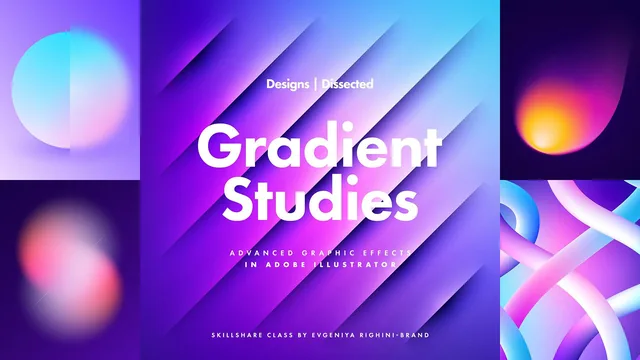
Seven design breakdowns reveal how basic Illustrator tools, layered cleverly, fake complexity most designers reach for filters or Gradient Mesh to solve.
Designs Dissected: Gradient Studies is less a tutorial than a guided autopsy. Evgeniya Righini-Brand takes six finished pieces from her personal Gradient Studies portfolio and pulls each one apart, layer by layer, explaining the specific reasoning behind every gradient, mask, and blending mode choice. The format is unusual for Skillshare: rather than building something from a blank canvas, the course reverse-engineers existing artwork, which makes it feel more like sitting beside a working designer as they open their own files than like a conventional lesson.
What it actually teaches
The throughline across all six design breakdowns is a single idea, repeated with variations: separate the elements that define shape and shading from the elements that define color, then blend them together using opacity settings and blending modes instead of hand-tuning individual gradients. This shows up as opacity masks built from offset radial gradients in the fading-out effects lesson, as Gaussian Blur applied inside clipping masks (with an oversized empty rectangle to avoid edge artifacts) in the translucency lesson, and as symmetric stroke gradients turned into reusable Graphic Styles for shading and highlighting paths of any shape. The Blend tool lesson is the most technically interesting: black-to-white gradient circles blended along custom spines create the illusion of 3D tubes, which are then colored separately using Freeform gradients clipped and transformed inside masks, with an Overlay-blended copy laid on top to restore the shading. Every design ends with the same finishing move, a grain-textured rectangle set to Soft Light at a consistent 35 percent opacity, adjusted slightly per piece.
Strengths and limits
The specificity is the course's real value. Numbers are given without hedging: Gaussian Blur radius of 200 pixels for a circle and 40 for text, stroke gradient color stops set to exactly 50 percent, grain intensity dialed from 10 up to 44 for a more particle-like look. These are the kind of concrete settings that let a viewer replicate an effect directly rather than approximate it from a vague description, and they reflect real production decisions rather than generic advice.
The tradeoff is that the course assumes fluency going in. It explains what was done and why, but rarely walks through the mechanics of opening the Appearance panel, releasing an opacity mask, or setting a blend spine step by step. Anyone shaky on clipping masks, gradient meshes, or Freeform gradients will lose the thread quickly, since those tools are treated as known quantities rather than taught from scratch. The class project, essentially "try one of these techniques on your own," is appropriately open-ended but offers no structured checkpoints.
At 55 minutes across seven short lessons, this sits closer to a technique lookbook than a comprehensive course. It rewards someone who already produces gradient-heavy vector work and wants to close the gap between competent and distinctive, but it will frustrate anyone hoping for a step-by-step primer on Illustrator's gradient tools. Paired with the instructor's more foundational Mastering Gradients class, which she references directly, it functions well as the advanced follow-up rather than a standalone starting point.
The standout
The Blend-based tube construction in the fifth lesson, where black-to-white gradient circles blended along hand-drawn spines create convincing 3D shading that a copied, Overlay-blended duplicate then colors independently of its structure.
What you will learn
- Building fading-out color transitions with layered linear gradients hidden inside an opacity mask, rather than a blur filter
- Using Gaussian Blur inside clipping masks to simulate frosted or privacy glass with real depth of field
- Constructing symmetric stroke gradients (transparent-to-opaque, centered at 50%) as reusable Graphic Styles for shading and highlighting any path
- Separating a shape's structure from its coloring by layering independent radial and Freeform gradients in blending modes like Overlay and Soft Light
- Building 3D-looking tubes from Blends between gradient-filled circles along custom spines, then coloring them with clipped, transformed Freeform gradients
- Applying a consistent grain layer (Stippled, 35% opacity, Soft Light) as a finishing texture across every design
Best for: Illustrator users already fluent in gradients, masks, and the Appearance panel who want a working designer's specific recipes rather than tool basics.
Skip it if: Beginners who haven't yet built confidence with opacity masks, clipping masks, and blend modes, since the course explains what was done more than how to operate the tools.