
Design a Digital Planner with Vectors in Affinity Designer
Liz Kohler Brown · artist | designer | teacher | author
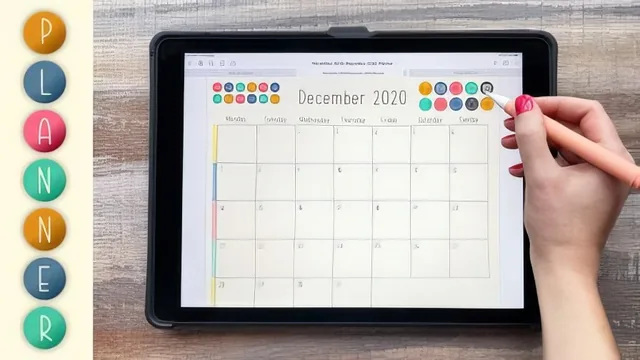
A working iPad planner workflow in Affinity Designer, taught by someone who actually sells and ships planners for a living.
Liz Kohler Brown's class on building a digital planner in Affinity Designer is less a tutorial on any single skill than a full production walkthrough, from a napkin sketch to a finished, linked, sticker-loaded file ready to sell on Etsy or give away as a lead magnet. The sixteen lessons trace an unusually complete arc: sketching layout ideas, choosing a color palette, building vector buttons and icons, constructing monthly and yearly grids, generating stickers, and finally exporting everything into Keynote and GoodNotes with working hyperlinks.
What actually gets taught
The vector work is where the class earns its keep. Brown demonstrates the mechanics that make Affinity Designer worth choosing over a raster app for this kind of project: constrained duplication for evenly spaced lines and buttons, the transform studio for precise repositioning, and the "convert to curves" trick for turning basic shapes like callout rectangles into custom outlines that can be reshaped node by node. The dashed-line technique for a fill-in label section, adjusting dash width and gap until the spacing reads as clean dots, is a small but genuinely useful bit of craft that a beginner would otherwise fumble through by trial and error.
Color management gets real attention too. Rather than just picking colors ad hoc, the class shows how to build a reusable swatch palette by dropping colors into the application palette and renaming it, which matters once a planner has dozens of pages that all need to share a consistent look.
Where the structure helps and where it thins out
The planning-to-production pipeline is the class's real strength. Watching a working professional move from rough thumbnail sketches to a components library of blank template pages that get duplicated and modified is a useful model for anyone who tends to freeze at the blank-page stage. The instructor's habit of narrating tradeoffs, dated versus undated planners, horizontal versus vertical formats, how many blank customizable sections to leave, gives the class more decision-making value than a pure software tutorial would.
The back half moves faster and gets thinner. The dated-planner lesson openly frames itself as optional and demonstrates the concept on a handful of months rather than walking through a full year, which is reasonable given the repetitive nature of the task but means learners doing a dated planner are largely extrapolating the pattern themselves. The Keynote linking and GoodNotes sticker-placement sections lean heavily on "I'll do the rest off camera," so the tedious, error-prone parts of the workflow (individually exporting and placing dozens of stickers) are described rather than fully shown.
Verdict
This is a legitimate professional workflow class, not a beginner's guide to vectors. Anyone who already knows their way around basic shape tools and just wants to see how a working sketch becomes a sellable digital product will get real value from the palette system, the button and sticker construction, and the mistake-fixing advice about replacing rather than deleting linked slides. Someone who has never touched a vector app before will likely need a separate primer first, since the pacing assumes comfort with the interface from lesson one.
The standout
The numbered week-matching system for building a fully dated planner, which lets the creator cross-check monthly and weekly pages against each other so date links never break.
What you will learn
- Building precise, evenly-spaced vector shapes and buttons using magnetics, duplication, and the transform studio
- Creating custom color palettes and saving them as reusable swatches across documents
- Designing custom vector effects like dashed strokes, transparent stickers, and callout shapes converted to curves
- Structuring a multi-page planner with reusable, grouped elements for cohesion and easy editing
- Adding clickable navigation links across the planner using Keynote
- Exporting and placing individual cropped stickers into GoodNotes for a functional digital sticker system
Best for: Intermediate iPad artists who already have basic Affinity Designer or vector comfort and want to build a sellable or personal-use digital planner from scratch.
Skip it if: Total beginners to vector apps or tablet drawing who need fundamentals-level instruction before jumping into a full multi-page production workflow.