
Create Fonts on Your iPad in iFont in a Few Easy Steps + 3 Free Fonts
Liz Kohler Brown · artist | designer | teacher | author
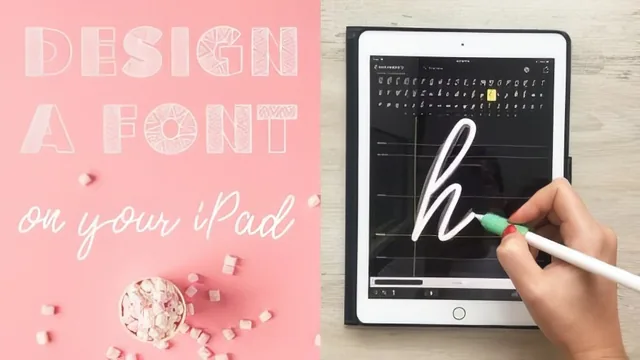
A fast, low-skill way to turn hand-drawn letters into a real installable font using one iPad app, no design software required.
What the course actually covers
This class walks through the entire process of turning hand-drawn letterforms into an installed, usable font using only an iPad, a stylus, and the app iFontMaker. It opens with a short orientation on downloading and using fonts you already have, including how to move a font into apps like Over for creating display graphics. From there it moves into the core app itself: the brush library, the letter grid, the guide-font system that lets you trace an existing typeface for height and spacing reference, and the layer tool that can import a photo of paper lettering as a tracing base.
The middle stretch is where the course does its real teaching, through three separate font-building projects. The first is a simple handwriting font traced loosely over an existing typeface, used to introduce the basic drawing and adjustment tools. The second is a patterned block font built from a single triangle-and-dot motif borrowed from a photographed pillow, copied and pasted across every letter that shares a straight vertical bar, then reworked by hand for circular letters like O, C, and G. The third is a cursive font, which requires the most care because connecting strokes have to line up so letters flow into each other rather than colliding.
Strengths and limitations
The patterned-font project is the strongest section, because it demonstrates a genuinely reusable workflow: perfect one letter, then copy its shape to every structurally similar letter instead of redrawing the whole alphabet from scratch. That single idea does more to make font-making feel achievable in an afternoon than anything else in the class.
The cursive section is honest about where the process gets harder. It spends real time on the kerning preview, showing how mismatched tails create visible gaps or overlaps between letters, and it walks through the habit of testing every letter pair rather than assuming the font works after drawing the alphabet once. That attention to a genuine failure mode, rather than glossing over it, is a mark of a class taught by someone who has actually shipped fonts before.
Where the class falls short is depth on the export side. It shows saving a font as public, private, or link-only, and briefly touches building GIF previews and Pangram images, but it does not get into naming conventions, licensing considerations for selling fonts, or how the exported files behave across different design software beyond Over and Procreate. Anyone hoping to walk away with a polished, market-ready product will need to research that part elsewhere.
The pacing also assumes a beginner has no experience with the app, which is appropriate for its stated level, but means experienced hand letterers already familiar with iFontMaker's interface will find the first third slower than necessary. The final display-image lesson, using a free stock photo and the Over app to build a marketing graphic, is a nice practical bonus but is closer to a bonus tip than a fully developed skill.
Overall, this is a tight, project-based class that delivers exactly what its title promises: three working methods for building a font on an iPad, taught by someone clearly comfortable with the medium's quirks and workarounds.
The standout
The technique of drawing one fully resolved element, such as the patterned capital I, then using copy and paste across structurally similar letters to build most of an alphabet in a fraction of the time.
What you will learn
- Setting up iFontMaker and navigating its brush, layer, and letter-editing tools
- Using an existing font as a height and width guide to speed up letter drawing
- Building a patterned display font by drawing one element and copying it across the alphabet
- Adjusting kerning and fixing letter connections so a cursive font reads smoothly
- Exporting a finished font and installing it into apps like Over and Procreate
- Designing a promotional display image to showcase or sell a finished font
Best for: Hand letterers, illustrators, and hobbyists with an iPad and stylus who want a quick, low-pressure way to turn their handwriting or patterns into a usable font.
Skip it if: Anyone wanting professional type design fundamentals like spacing theory, OpenType features, or multi-weight font families.