
Create a Half Drop Repeat Pattern in Photoshop using Smart Objects
Mel Armstrong · Illustrator, Pattern Addict & Teacher
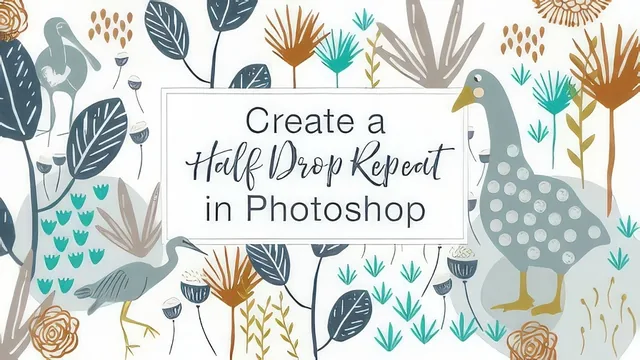
A single 37-minute Photoshop technique video, worth it only if half-drop repeats via Smart Objects are exactly what you're missing.
Mel Armstrong's class does one specific thing and does not pretend to be more than that: it shows how to build a half drop repeat pattern in Photoshop using Smart Objects, then carries that pattern through to a product mockup and a Spoonflower upload. At 37 minutes across nine short lessons plus a bonus video, it moves fast, and it assumes the viewer already knows their way around Photoshop's basics.
The core technique is genuinely clever. After sketching a pattern tile inside a rotated diamond guide (built by filling a marquee selection at 50 percent gray and rotating it into position), Armstrong converts the grouped artwork into a Smart Object. From there, she duplicates that Smart Object eight times around the original, using the Offset filter with precisely recorded horizontal and vertical values to place each copy at the top, bottom, sides, and corners needed for a true half drop. The payoff comes when she opens the original Smart Object and nudges an overlapping icon or shrinks an element that reads as too crowded: every linked duplicate updates at once. That single feature is what separates this workflow from doing a half drop by hand, and it is worth the price of admission for anyone who has fought with repositioning artwork across a dozen duplicated tiles.
Where the course delivers
The extraction lesson is the most practically useful segment after the Smart Object trick itself. Armstrong shows how to use the fixed-size rectangular marquee, calculated from the offset numbers written down earlier (horizontal times two, vertical as recorded), to pull a clean, seamless tile out of the full arrangement and register it as a reusable pattern. This is a step a lot of pattern tutorials gloss over, and having the exact math laid out removes the guesswork.
The mockup and Spoonflower lessons round out the class into something closer to a full workflow rather than an isolated trick. Applying the finished pattern to a notebook cover, swapping the ribbon color, and then re-extracting the tile at 150 DPI for a Spoonflower TIFF upload gives the class a real endpoint, not just a technique demonstrated in isolation. The bonus video addressing a cropping bug in the Offset filter, and the fix of enlarging the canvas before offsetting, is a small but practical troubleshooting addition that suggests attentiveness to what actually goes wrong in practice.
Where it falls short
The class leans hard on narration over visible structure. Numbers like offset values and tile dimensions are called out verbally rather than reinforced with on-screen annotation, and the tile-building lesson itself is compressed into a sped-up, music-backed montage with no real explanation of the creative decisions being made. Viewers without prior Photoshop fluency, especially with Smart Objects, transforms, and layer groups, will likely lose the thread during the eight-tile offset sequence, since it relies on quick sequential steps rather than a slower breakdown of the underlying logic.
There is also no coverage of pattern design principles themselves, spacing, balance, motif variety, so this is a technical tutorial, not a design one. Anyone hoping to learn how to compose an appealing repeat, rather than mechanically construct one, will need to look elsewhere. As a focused technique demonstration for an artist who already has icons ready to arrange, it holds up well; as a complete pattern-design education, it does not attempt to be one.
The standout
The Smart Object duplication method, where editing one linked tile instance instantly repositions the icons across all eight surrounding copies, removing the tedious manual rework that half drop repeats usually demand.
What you will learn
- How to set up a square document with a rotated 50% gray guide layer to mark a diamond-shaped tile boundary
- How to build a half drop repeat by duplicating a Smart Object eight times and offsetting each copy with precise horizontal/vertical values
- How editing one Smart Object instance updates every duplicate simultaneously, so overlaps and spacing can be fixed once
- How to extract a clean, seamless repeat tile using the rectangular marquee at exact pixel dimensions and Define Pattern
- How to apply a finished pattern to a product mockup (notebook cover, ribbon, pencil) via Smart Object layers
- How to prep and upload a repeat file to Spoonflower, including resolution, file format, and tagging for sale
Best for: Surface pattern designers or illustrators already comfortable in Photoshop who want a faster, non-destructive way to build half drop repeats without switching to Illustrator.
Skip it if: Photoshop beginners, anyone unfamiliar with layers, transforms, and the offset filter, or artists who mainly want a full pattern-design or Illustrator-based course.