
Collage Animation: Creative Motion Graphics with Photoshop & After Effects
Carminys Guzmán · Motion grapher
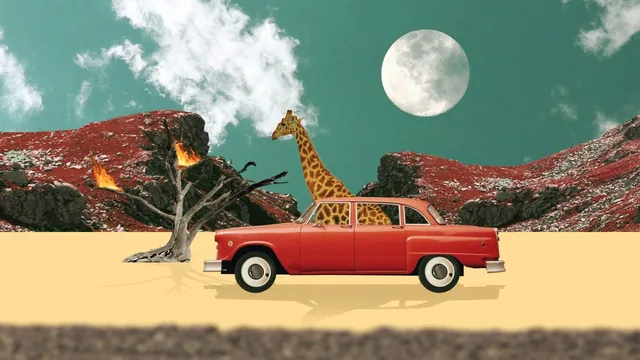
A quick, hands-on workflow for turning stock photos into a moving collage scene, useful mainly if you already know your way around After Effects.
This course sets out to teach a single, well-defined project: building a surreal animated collage, in this case a giraffe driving a car through a mountain landscape toward a portal to space, using cropped stock photography brought to life in After Effects. It delivers exactly that, in just over an hour, with almost no wasted time.
Structure and technique
The arc is logical and mirrors an actual production pipeline. It opens with concept and reference (a nod to illustrator Julien Pacaud), moves into sourcing free images and video from Unsplash, Pixabay, Pexels, and Freepik, then spends real time on a rough Photoshop sketch built from quick, imprecise selections. That sketching stage is a smart inclusion: it lets a viewer validate whether a scene idea reads before investing in clean cutouts, and it is the kind of practical judgment call that separates a working method from a tutorial that jumps straight to polish.
The cropping lessons are the most technically useful stretch. One method relies on Photoshop's Object Selection tool combined with Select and Mask to handle fine detail like the giraffe's fur, refining edges with the edge brush and feather and shift-edge sliders. The other falls back on the Polygonal Lasso for stubborn shapes like a car body, deliberately trading precision for speed since the elements will be small and moving. Teaching both, and explaining when to reach for which, is more useful than most cropping tutorials that only show one approach.
Once the material moves into After Effects, the course covers parallax animation by keyframing background, midground, and foreground layers at different speeds and smoothing the motion with F9, then automating the repeating cycles with the loopOut("pingpong") expression on rotation and position. This is the technique that gives the finished piece its sense of depth and its professional feel, and it is explained clearly enough to reuse on an unrelated project. Later lessons cover integrating actual video clips (a moon, sky, and space background) using blend modes like Screen and track mattes, adding a glitch transition built entirely from opacity keyframes and a Linear Light blend, and closing out with color grading, hand-drawn and duplicated shadows, and export settings through Adobe Media Encoder.
Where it falls short
The course assumes prior comfort with After Effects fundamentals, and it says so upfront, but the pace still moves fast even for an intermediate viewer. Concepts like anchor points, pre-composing, and expressions are used rather than taught, so anyone shaky on those basics will need to pause often or take the instructor's earlier After Effects course first. The alternative method lesson, converting a flat illustration into a textured collage using alpha mattes, is a good bonus but visibly reuses assets from that prior course rather than building something new, which makes it feel more like an appendix than a core lesson.
At 73 minutes, this is not a course that lingers. It respects the viewer's time and gets to a finished, exportable animation, but it will underserve anyone hoping for deep explanations of the underlying tools rather than a fast, replicable recipe.
The standout
The parallax animation lesson, where layered elements are keyframed at different speeds and eased with loopOut("pingpong"), is the technique most likely to change how someone builds motion into a flat composite.
What you will learn
- Sourcing free stock images and video (Unsplash, Pixabay, Pexels, Freepik) and organizing footage for a project
- Two Photoshop cropping methods: the Object Selection plus Select-and-Mask workflow for detailed edges like fur, and the Polygonal Lasso for harder shapes like a car
- Building a rough sketch composite in Photoshop before final cropping to test whether a scene concept works
- Animating parallax depth in After Effects using staggered position keyframes, F9 easing, and the loopOut("pingpong") expression
- Integrating video footage into a still collage with track mattes, layer blend modes like Screen, and masks
- Finishing touches: hue/saturation grading, a glitch effect built from opacity keyframes and blend modes, adding drawn or duplicated shadows, and rendering through Adobe Media Encoder
Best for: Motion designers or illustrators who already have working Photoshop and After Effects fluency and want a compact recipe for a collage-style animated scene.
Skip it if: Complete beginners to After Effects or Photoshop, since the pace assumes comfort with masks, expressions, and keyframes and does not explain them from scratch.