
Circular Logo Design with Draplin: Combine Type & Icons in a Classic Shape
Aaron Draplin · Designer and Founder, Draplin Design Company
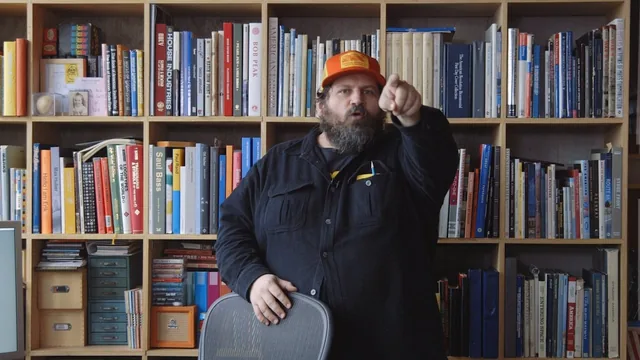
Draplin builds two travel-sticker logos live in Illustrator, turning circular design rules into concrete keyboard-driven habits rather than abstract theory.
Aaron Draplin's second Skillshare class picks one shape, the circle, and stays there for just over an hour, using it to teach a genuinely narrow but useful skill: packing type, icons, and hierarchy into a badge-like format without the result looking cramped or amateurish. The project is a personal travel sticker, the kind of return-address label frequent flyers slap on luggage, and that small scope is the course's biggest strength. Nothing here is abstract. Every principle gets tested against a real object with a real constraint: it has to fit a circle and still be legible.
Structure and pacing
The course opens with research, not software. Draplin empties a drawer of stamps, patches, and pinback buttons onto the table and talks through why each one works, pointing at line-weight consistency on an old beer patch or the readable hierarchy on a cleaning-product label. This grounds the later technical work in actual reference material rather than rules stated in the abstract. From there it moves to pencil sketching, a deliberate step away from the screen that most software tutorials skip, and only then into Illustrator.
Once inside Illustrator, the pace picks up considerably. Draplin builds a type-only badge first, using the scale tool to nest concentric circles, the eyedropper to force consistent line weights, and type-on-a-path to wrap text cleanly around each ring. He then rebuilds the same badge with an icon added, hand-drawing a simple airplane from rectangles and the pen tool, before a bonus "advanced" chapter pushes into a more layered travel-decal graphic with a globe and orbit lines. Each stage is a variation on the same core moves, which makes the middle of the course feel more like repetition-with-refinement than new material, though that repetition is also what makes the keyboard shortcuts and alignment habits actually stick.
What holds up and what doesn't
The final lesson on wrapping up the document is the strongest single stretch. Draplin walks through converting live type to outlines, using the Pathfinder panel to merge overlapping lines into one compound shape, and stripping unused colors and symbols before saving a vendor-ready file. This is the kind of file-hygiene knowledge that separates a working freelancer from a hobbyist, and it is rarely covered with this much specificity elsewhere.
Where the course falls short is accessibility. The blurb claims it works whether "you're just getting started with Illustrator or a seasoned graphic veteran," but the pace assumes fluency with the pen tool, keyboard modifiers, and Illustrator's panel layout. A true beginner will lose the thread during the rapid-fire circle-nesting sequence, since commands are demonstrated at working speed with light explanation of why a particular shortcut was chosen over another. The advanced globe-and-orbit chapter also moves fast enough that it functions more as inspiration to rewatch later than a lesson to follow in real time on a first pass.
As a short, focused unit on circular composition and file finishing, it delivers exactly what it promises. As a beginner-friendly introduction to Illustrator, it overstates its own accessibility.
The standout
The step-by-step flattening and cleanup sequence, converting type to outlines and pathfinding overlapping lines into single compound shapes, is a genuinely reusable pre-press habit most logo tutorials skip entirely.
What you will learn
- How to construct concentric circles with the scale tool and align type to paths using type-on-a-path
- How to check and unify line weight and type size with the eyedropper tool across a whole design
- How to build a simple icon (an airplane) from primitives and integrate it with circular type
- How to flatten a finished vector file into compound shapes to prevent vendor errors before handoff
- How to structure file versions and naming conventions for a clean handoff workflow
- How to combine research, analog sketching, and digital execution into one repeatable process
Best for: Illustrator users with basic tool familiarity who want to see a working professional's real production habits, not just design theory.
Skip it if: Complete Illustrator beginners who don't already know the pen tool, path type, or basic keyboard shortcuts will struggle to keep up with the pace.