
Botanical Scenes in Photoshop: Incorporating Watercolor Into Digital Design
Silvia Ospina · Artist and Graphic Designer
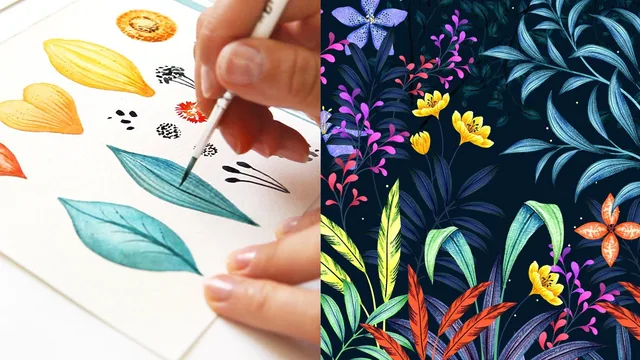
Learn how to turn hand-painted watercolor petals into an infinite Photoshop flower library using masking and transform tricks.
Silvia Ospina's class sells itself as a watercolor course but it is really a Photoshop multiplication course with a watercolor front end. The arc is straightforward: paint a small set of petals, leaves, stems, and flower centers with basic wet-on-wet washes and gradients, scan them in, then spend the majority of the runtime learning how to turn that small set into an entire botanical library inside Photoshop. Anyone expecting deep painting instruction should recalibrate expectations early, since the watercolor portion covers only foundational moves like diluting pigment for lighter tones, building a two-color gradient on a petal, and lifting paint with a damp brush to create highlights.
Where the real value sits
The digitizing and isolation lesson is the hinge of the whole class. Ospina walks through fixing scan levels, using the Magic Wand with a tolerance of 32 on a contiguous selection, and refining the edge with Select and Mask before converting it into a proper layer mask. This is genuinely useful, transferable Photoshop skill that applies to any hand-drawn asset, not just botanicals.
From there the transforming tools lesson becomes the engine for everything that follows: Puppet Warp for bending a stem, Hue/Saturation for recoloring a petal without repainting it, and Multiply or Color Overlay for tinting shapes while keeping their texture. Watching one leaf and one stem become a full stem of foliage through duplication, perspective transforms, and pinned warping is the moment the course's central promise, that a handful of paintings can become an entire library, actually clicks. It is a smart, production-tested workflow that clearly comes from real client work rather than a classroom exercise.
Where it thins out
The pacing is uneven. Early lessons on materials, color theory, and gathering inspiration from Pinterest or Color Hunt are competent but generic, the kind of advice that any illustration class would offer. Meanwhile the composition lessons near the end, where multiple plants and typography get combined into a finished card or poster, move quickly and lean on the viewer replicating a process shown mostly through sped-up screen capture rather than fully explained step by step. Font selection is treated almost as an afterthought, a scroll-and-see intuition exercise rather than a taught skill.
The class project, a thank-you card or poster, is a fitting capstone that forces practice of the exact skills taught: building at least three flowers, three foliage types, and combining them with text. It is achievable in a single sitting once the assets exist, though painting and scanning the initial elements will take longer than the 124-minute runtime suggests.
Who should take it
This is not a class for someone who has never opened Photoshop, despite the blurb's claim that no experience is required. Menu paths, keyboard shortcuts, and layer panel terminology are used at a pace that assumes comfort with the interface already. It is also a thin choice for someone who wants to become a better watercolor painter, since the painting itself is treated as raw material rather than a craft to develop.
Where it earns its place is with illustrators, surface pattern designers, or hobbyists who already paint and already know Photoshop basics, and who want a concrete, repeatable method for stretching a small set of physical paintings into a large, reusable digital asset library. For that specific audience, the masking and transform techniques alone justify sitting through the slower first half.
The standout
The lesson on turning one painted leaf and stem into a full branch of foliage using Puppet Warp, duplication, and perspective transforms is the technique that makes the whole class worth the time.
What you will learn
- How to isolate hand-painted watercolor elements from a scan using Levels, the Magic Wand, and Select and Mask
- How to build layer masks and use Puppet Warp to bend stems and reshape petals into new flower variations
- How to duplicate, rotate, and recolor a single painted leaf or petal into dozens of foliage and flower variants
- How to use Hue/Saturation, Multiply, and Color Overlay to shift the color of painted assets without repainting them
- How to organize duplicated assets into a reusable botanical library of flowers and foliage documents
- How to compose a balanced botanical scene with text and export it correctly for print versus web
Best for: Anyone who already has basic Photoshop fluency and wants a repeatable system for multiplying a handful of watercolor paintings into a full commercial-style botanical library.
Skip it if: Total Photoshop beginners who need help with the interface itself, and anyone hoping for deep watercolor painting instruction rather than a handful of basic washes and gradients.