
Animating Illustrations Using the Puppet Tool
Kay Leathers · Illustrator/Designer for Motion Graphics
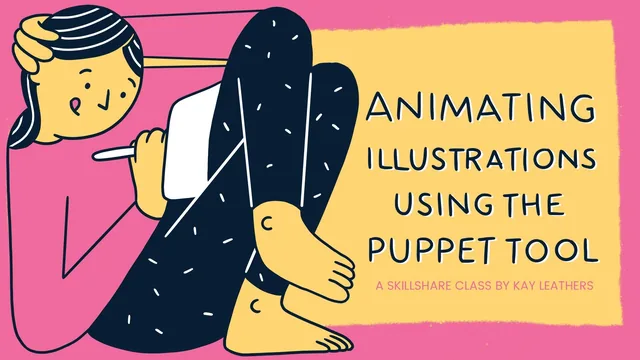
A tight 58-minute walkthrough that turns a flat illustration into a looping GIF using After Effects' puppet pins.
Kay Leathers' class does one thing and does it in under an hour: it takes a single illustrated character, isolates one moving part, and turns it into a looping GIF using the Puppet Tool in After Effects. The scope is narrow by design, and that narrowness is what makes the course work as well as it does.
The arc is linear and practical. It opens with sketching and inking a character in Procreate, using reference boards and quick tube sketches as source material, then moves into the part most beginner tutorials skip: how to actually split an illustration into animation-ready layers. The instruction to keep the piece being animated, in this case a crossed leg, on its own isolated layer, with a fully redrawn body layer sitting underneath it, is a genuinely useful habit that prevents the distortion beginners run into the first time they try to puppet-rig anything. The four-to-five color limit for GIF-friendly file sizes is another small, concrete piece of production advice that pays off later during export.
The middle section is the heart of the class. After the PSD imports cleanly into After Effects with its layer names intact, the course walks through three pin types in sequence: the basic Position pin, the Advanced pin that adds rotation and scale, and the Starch pin, which stiffens the surrounding mesh so a rotating foot does not warp the leg above it. Watching how these three pins interact, rather than just what each one does individually, is the most transferable skill in the class. The keyframing lesson that follows is equally tight: pose the two extremes, copy and paste them to build a loop, then apply Easy Ease so the motion stops looking like a metronome and starts looking organic.
Export gets its own lesson, covering the Adobe Media Encoder queue for producing GIF and MP4 versions side by side, along with a practical aside about why Instagram needs an MP4 rather than a GIF. The closing lesson broadens the technique across a handful of extra examples, a scribbling hand, a blinking eye, a breathing flower, rotating roller skates, which is useful for seeing the pin logic applied elsewhere but does not add new mechanics.
The tradeoff is depth. This is a single-rig, single-motion class, and it never addresses multi-part rigs, overlapping timing across several limbs at once, or troubleshooting when a mesh misbehaves on more complex artwork. Anyone hoping for a fuller animation curriculum will need a follow-up course. But for what it promises, drawing a character, rigging one part, and exporting a shareable loop, the class delivers cleanly, with no wasted lessons and no filler between steps.
The standout
The advanced pin's combined control of position, rotation, and scale, paired with a starch pin to stop the surrounding artwork from squishing, is the one technique that makes the whole rig read as natural movement.
What you will learn
- Draw and separate a character illustration into layers built specifically for the parts you intend to animate
- Export a layered Procreate PSD into After Effects while preserving layer names and structure
- Apply the Puppet Position, Advanced, and Starch pin tools to rig a limb or feature for movement
- Keyframe a looping animation and smooth it out using the Easy Ease keyframe assistant
- Batch-export a finished animation to both GIF and MP4 through Adobe Media Encoder
- Adapt the same pin-and-keyframe approach to secondary details like a blink, a moving tongue, or a rotating prop
Best for: Illustrators and designers with basic Procreate or Photoshop layering skills who want a fast, guided path to their first looping animated GIF, with zero prior After Effects experience required.
Skip it if: Animators seeking character rigging fundamentals, walk cycles, or multi-limb choreography should look elsewhere, as should anyone starting without a finished illustration ready to import.