
Advanced Video Editing with Adobe Premiere Pro
Jordy Vandeput · Filmmaker and Youtuber
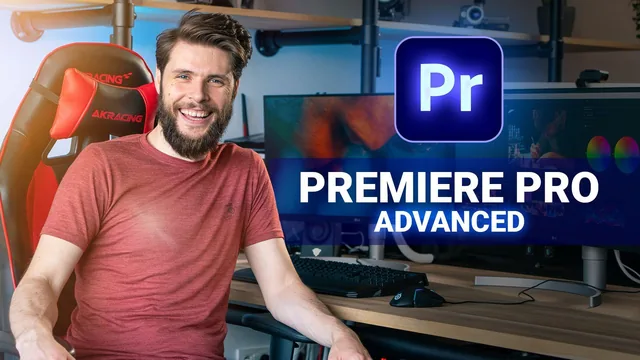
Twenty lessons walk through Premiere Pro's advanced toolkit end to end, though the class often meanders through Jordy's jokes before it lands the point.
Advanced Video Editing with Adobe Premiere Pro is a follow-up to Jordy Vandeput's beginner class, and it earns the "advanced" label mostly through breadth rather than depth. Across 20 lessons and 216 minutes, it moves through sequence settings, shortcut customization, multicam, graphics, transitions, stabilization, time remapping, and audio repair, all built around real editing footage of a miniature painter named Yannick rather than throwaway stock clips. The pace assumes viewers already know how to make basic cuts, and it delivers on that assumption by skipping past fundamentals almost entirely.
Structure and technique
The course opens with a workflow refresher covering markers, clip labels, and adjustment layers, then pivots into genuinely useful technical territory: sequence presets like DNxHR, why codec choice matters for playback previews, and how nesting a sequence at a higher resolution lets an editor reposition and scale 5K source footage inside a 4K timeline. The shortcuts lesson is dense and practical, walking through the ripple trim delete function, remapping "Add Edit" to a single key, and reassigning full-screen playback for a non-QWERTY keyboard, and it is followed by a lesson on exporting a custom keymap file to another machine, a niche but concrete piece of knowledge that most editing courses skip.
The middle stretch covers keyframe interpolation in real detail. It explains Ease In and Ease Out in relation to a keyframe's direction, then shows how pulling on Bezier curve handles changes animation speed, including the counterintuitive point that flattening a curve at both ends of a middle keyframe makes an object pause mid-motion. This is one of the stronger sections because it builds a mental model rather than just a menu tour. The Essential Graphics lesson that follows is more workmanlike, walking through layering shapes and text but noting the panel's real limitation: an effect applied to one layer bleeds down to every layer beneath it, forcing workarounds with multiple graphics files.
Where it earns its "advanced" tag
The Warp Stabilizer lesson has the course's best trick: instead of just smoothing shaky footage, it shows how to nest a handheld clip, run stabilization analysis on it, then apply that same stabilization data to an unrelated static shot, which paradoxically injects fake handheld motion into it. Time remapping gets similar treatment, using speed ramps with eased key-frames as a transition device between two clips rather than a gimmick. The audio segment is more surface-level: the Essential Sound panel's Repair tab (noise, rumble, hum, de-ess, reverb reduction) is demonstrated with a repeated warning not to push any slider too far, which is sound advice but light on the "why" compared to the keyframe lesson.
The course loses momentum in its export and troubleshooting lessons. Bitrate recommendations (50 Mbps for 4K, ProRes 422 versus 4444 with alpha) are useful reference numbers, but the closing lesson on downgrading project files between Premiere versions, while a real pain point, feels like a bonus tip stretched into a full lesson. Jordy's comedic asides (a fake door collision, a running "maintenance guy" bit) add personality but occasionally slow down lessons that could be tighter. Overall the class rewards someone who already edits in Premiere and wants to fill specific gaps, not someone building a mental map of the program for the first time.
The standout
The Warp Stabilizer trick of analyzing a handheld clip inside a nested sequence and applying that motion data to a static shot to fake camera movement.
What you will learn
- Building nested sequences and matching resolution/codec settings for high-res source footage
- Advanced trim and cut shortcuts (ripple trim delete, custom keymaps) for faster editing
- Keyframe easing and Bezier curves for smoother animated text and graphics
- Building reusable graphics presets and templates in the Essential Graphics panel
- Warp Stabilizer techniques including transplanting handheld motion onto a static shot
- Time remapping for speed ramps and audio repair with the Essential Sound panel
Best for: Editors who already know Premiere's basics and want a fast tour of its deeper toolset, from codecs to color-adjacent finishing touches.
Skip it if: Complete beginners to Premiere, or anyone hoping for structured lessons on color grading or audio mixing, both of which are explicitly pushed off to other classes.