
Adobe Photoshop CC – Essentials Training Course
Daniel Scott · Adobe Certified Trainer
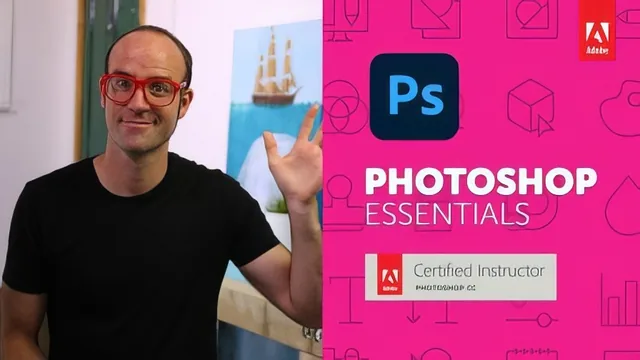
A sprawling 624-minute Photoshop essentials course that teaches through real projects, not menu tours, and stays current with generative AI tools.
This is a long course built the way its instructor says it will be: project by project, not tool by tool. Rather than marching through every panel and menu, Daniel Scott sets a real task first (fix this photo, build this Instagram post, put an island in a bottle) and teaches whatever Photoshop features that task needs. It's a sound structure for absolute beginners, because it means every technique arrives attached to a reason to use it.
From layers to light and color
The opening stretch is patient to a fault, which is either a strength or a drag depending on what a viewer already knows. A full video is spent on preferences, workspace resets, and where to find free stock photography before Photoshop is even opened for real editing. Once it gets going, the layers lesson doubles as an introduction to the automatic Tone, Contrast, and Color adjustments, and it does a good job of showing why duplicating a layer before adjusting it matters: you get a visible before-and-after by toggling the eye icon rather than trusting memory. From there the course moves into Levels, Vibrance, and Hue adjustments for fixing and changing color, each demonstrated on a specific image with a specific problem rather than an abstract slider tour.
The navigation and combining lesson is where the course earns its "essentials" label most clearly. Dragging one open document's layer onto another via the tab-hover trick is a genuinely useful, non-obvious technique, and the instructor is upfront that it looks strange the first time but pays off later once layer masks and adjustment layers enter the picture.
Selections, type, and the generative tools
The masking and selection material, including hair masking and object cutouts, is standard but necessary ground for any beginner, and it's taught through believable scenarios like isolating a product shot or combining a storm photograph with a teacup for a compound image. The type section covers warping text, wrapping it around a circle or line, and adding outlines, useful for anyone heading toward poster or flyer work.
Where the course distinguishes itself from an older, static Photoshop tutorial is its handling of Generative Fill and Generative Expand. The demonstrations of expanding a cropped beach hut photo, straightening a tilted horizon while inventing new background pixels, and filling in missing dress or building detail are shown with genuine surprise at how well the results hold up, matching depth of field, light direction, and color. A later section on neural filters, including harmonization for matching color between two composited images and the landscape mixer for changing a photo's season, extends that same generative thread and keeps the material from feeling like a course frozen in an earlier Photoshop version.
Retouching, drawing, and where it thins out
The retouching stretch, covering Liquify for reshaping a body and the Burn tool for faking contact shadows, is honest about the ethical discomfort of body retouching while still teaching the mechanics plainly. A Wacom tablet segment and a splatter-brush effects lesson feel like bonus material rather than essentials, useful for anyone who owns a drawing tablet but skippable for most.
The course's weakness is pacing rather than content. Twenty-plus lessons and over ten hours is a lot for a stated beginner audience, and some early administrative video would benefit from trimming. It also closes with a class-project format that assumes the viewer will self-direct practice, which works for a motivated learner but offers little structured feedback. For someone starting from zero who wants one course that carries them from opening the software to using its newest AI-assisted tools, it delivers on that promise thoroughly.
The standout
The Generative Expand demonstrations, where cropped or tilted photos get believable new background, matching light, focal blur, and even shadow direction, invented on demand.
What you will learn
- How layers work, including duplicating, reordering, naming, and unlocking the background layer
- Core color and light fixes using Levels, Vibrance, Hue, and the automatic Tone/Contrast/Color adjustments
- Selection and masking techniques including hair masking, object cutouts, and combining multiple images into one composite
- Generative Fill and Generative Expand for background invention, object removal, and extending cropped images
- Type effects such as warping text, wrapping it around a shape, and adding outlines or gradients
- Retouching and distortion tools including Liquify for reshaping bodies and the Burn tool for faking shadows
Best for: Someone who has never opened Photoshop, or has opened it and bounced off the interface, and wants a guided path through real projects rather than a feature-by-feature manual.
Skip it if: Anyone who already knows layers, masking, and basic color correction and wants only the newer AI features, since those are folded into a long beginner course rather than isolated.