
Adobe InDesign CC - Essentials Training Course
Daniel Scott · Adobe Certified Trainer
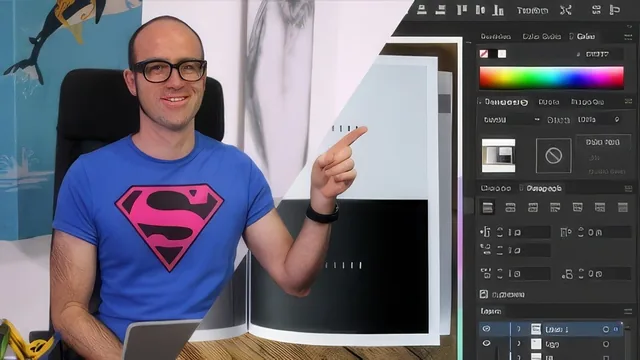
A working graphic designer walks total beginners from a blank InDesign document to a 400-page magazine, one real project at a time.
Adobe InDesign CC - Essentials Training Course does what a lot of software tutorials only claim to do: it starts at zero and ends with the reader able to produce genuine print documents. Daniel Scott, an Adobe Certified Instructor, structures the roughly seven-hour course around a sequence of real projects rather than a feature-by-feature tour, and that choice shapes everything about how the material lands.
Structure and teaching approach
The course opens by orienting complete beginners to where InDesign sits relative to Word, Photoshop, Illustrator and legacy tools like QuarkXPress and PageMaker, which is a smart move for anyone unsure why they need a fourth or fifth piece of design software. From there it moves through a single-page flier, then a longer brochure and company newsletter, then business cards, and finally a long multi-page document resembling an annual report. Each project introduces new mechanics in context: the flier teaches bleed, slug, and custom color creation; the newsletter introduces columns, master pages and text flow; the long document introduces the primary text frame, automatic table of contents generation, and paragraph styles pulled in from other files or shared libraries.
This progression matters because InDesign's real complexity is not in any single tool but in how documents scale. A single-page flier does not need linked text frames or a table of contents. A 30-page newsletter does. By building toward that scale deliberately, the course teaches the primary text frame not as an abstract feature but as the direct solution to a problem the learner has just felt: manually flowing text across dozens of pages by hand. The same is true of paragraph styles, which get introduced almost incidentally while formatting the flier, then pay off hugely once the course reaches the table of contents lesson, where headings tagged with a paragraph style are compiled into a fully linked contents page in a few clicks.
What holds up and what doesn't
The bleed-and-slug explanation, delivered with a printed magazine as a physical prop, is a good example of the course's strength: it does not just say what a setting does, it explains why a guillotine at a print shop makes that setting necessary. Similarly, the closing tips lesson, covering shortcuts like Quick Apply, jumping pages with a page-number dialog, changing document defaults, and a sane folder structure for client jobs, reads like something drawn from years of actual production work rather than a generic feature list.
The course is less polished in a few smaller places. Tabs and leader dots are acknowledged mid-lesson as fiddly and inconsistent in InDesign itself, and the instructor works through a genuine on-screen glitch rather than editing around it, which is honest but slightly untidy for a course aimed at beginners who may not yet know what "supposed to happen" looks like. A note about Adobe renaming Master Pages to Parent Pages also signals that some terminology may lag slightly behind the current InDesign interface, a minor but real friction point for someone following along in a newer version.
Overall this is a genuinely useful, project-driven introduction rather than a reference manual. Someone who completes all the projects will have build fliers, a multi-page newsletter with a working table of contents, and packaged a file for a printer, which is a realistic and marketable skill set for a beginner. It does not attempt interactive PDFs, digital publishing, or advanced typographic control, so it should be treated as a strong foundation course rather than a comprehensive one.
The standout
The primary text frame and automatic page-generation workflow, which turns a placed Word document into a fully paginated 30-page newsletter in one click instead of manually linking dozens of text boxes.
What you will learn
- Setting up a print document correctly, including bleed, slug, margins and units (inches vs millimeters)
- Building and picking custom colors in both RGB and CMYK, including sampling a color directly from a logo
- Importing, resizing, cropping and flowing text from Word while managing paragraph styles
- Using master (parent) pages, primary text frames and automatic page numbering to manage long documents
- Building a table of contents automatically from paragraph styles, with tab leaders and dot leaders
- Exporting finished work as a print-ready PDF or JPEG, and packaging a file to send to a printer or collaborator
Best for: Someone who has never opened InDesign but needs to produce real print documents such as fliers, newsletters or reports and wants to follow along on their own machine.
Skip it if: Anyone who already knows InDesign basics and wants advanced typography, interactive PDF, or EPUB/digital publishing techniques, since this stays firmly at introductory print-production level.