
A Beginner Guide to Adobe Illustrator for iPad | Create Vector Art on the Go
Tracey Capone · Illustrator, Photographer & Designer
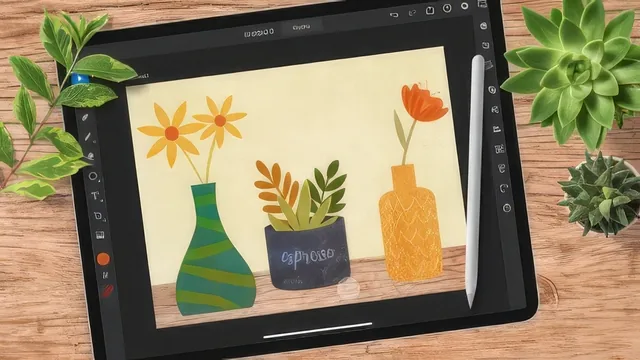
A tight, well-organized 92-minute tour of Illustrator for iPad's interface and core tools, built around three simple floral projects.
Tracey Capone's class arrived at an obvious moment: Illustrator finally landed on iPad, and beginners needed a map. That is exactly what this course delivers, a 92-minute orientation built around three small floral illustrations rather than one continuous project.
Structure and pacing
The course opens with a genuinely thorough interface tour, longer and more detailed than most app-overview lessons bother to be. Capone walks through the home screen, document creation settings like color mode and orientation, then the full toolbar and taskbar, covering undo gestures, the touch shortcut button's primary and secondary modes, layer management, and the properties panel that changes contents based on selection. This section runs long relative to the rest of the class, but it pays off later because every subsequent lesson leans on vocabulary already established here.
From there the course moves into three parallel builds: a vase made with the Shape Builder tool, a vintage can drawn with the Pen tool and finished with text set on a path, and a bud vase sketched freehand with the Pencil tool. Each vase gets its own flower or plant treatment afterward, including a flower built with Direct Selection cleanup, a poppy assembled from layered shapes, and a second flower generated with the Radial Repeat tool. A final lesson on leaf shapes and clipping-based texture ties the three groupings together before a short export lesson closes things out.
What actually gets taught
The strongest material is procedural rather than conceptual. The Pen tool lesson demonstrates how leading handles determine curve direction, and shows the fix for the common beginner mistake of ending up with unwanted smooth nodes when a sharp corner was intended. The Radial Repeat sequence is arguably the best single technique in the course: building one petal, applying the repeat, then adjusting individual instances afterward without breaking the pattern. Texture work runs throughout via clipping groups and blend mode experimentation, mostly Soft Light and Overlay, applied to duplicated shapes so a base color shows through a texture image layered on top.
Where the course thins out is depth. Because every illustration is intentionally simple, techniques get introduced and then dropped rather than built on. The Shape Builder appears early but only for basic Boolean combining. Node cleanup with Direct Selection and Align gets shown once per shape rather than developed into a repeatable workflow. Anyone who finishes the three projects will understand what each tool does, but not necessarily how to combine them into more ambitious artwork without further practice or a follow-up class.
The teaching style is unhurried and forgiving, with visible mistakes left in and corrected on screen rather than edited out, which suits true beginners who need to see recovery from errors rather than only clean results. That approach also means occasional repetition and some drift in pacing, particularly during the succulent and leaf-building sections where several similar shapes get created in sequence.
For a first exposure to a new app, the balance of interface literacy and hands-on practice is sound. It will not carry anyone into intermediate illustration work on its own, but it removes the intimidation of an unfamiliar toolset efficiently.
The standout
The walkthrough of building one flower petal and then using the Radial Repeat tool to generate and adjust the full bloom is the single technique most worth the price of admission.
What you will learn
- Navigate the Illustrator for iPad home screen, document setup, and full interface including taskbar, toolbar, and touch shortcuts
- Sample colors from a reference image to build a custom document-specific palette
- Combine basic shapes with the Shape Builder tool to construct a vase illustration
- Use the Pen tool to draw a vintage can shape and add curved text along a path
- Draw freeform vase and leaf shapes with the Pencil tool, then clean up nodes with Direct Selection and Align
- Build a radially repeated flower and layer texture image files onto objects using blend modes and clipping
Best for: A complete beginner to Adobe Illustrator for iPad who owns an iPad and Apple Pencil and wants a guided first project rather than a manual.
Skip it if: Anyone already comfortable with vector tools in desktop Illustrator or Affinity Designer, since the pacing and content stay strictly beginner level throughout.