
2D Animation For Beginners With Adobe Animate
Walt Wonderwolk · Wicked Skills | Digital Designer & Dev
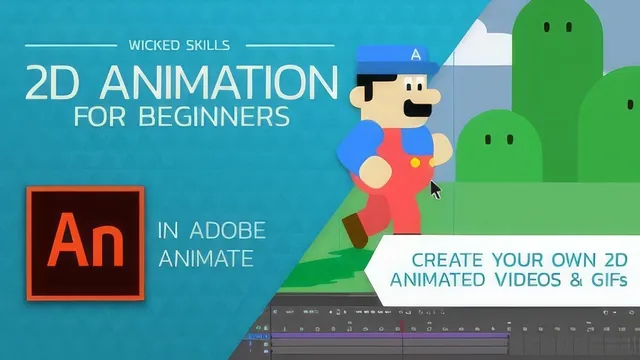
A fast, hands-on walk through Adobe Animate that builds one full 10-second game trailer, but 74 minutes leaves little room for depth.
This class sets out to do one specific thing: take someone who has never opened Adobe Animate and get them to a finished 10-second animated game trailer within about 74 minutes. It mostly succeeds, though the pace required to hit that runtime means several techniques get a single demonstration rather than real practice time.
Structure and what it actually teaches
The course follows the logical order any animation project would: interface orientation, vector drawing, character construction, then four separate animation methods layered on top of a built scene. The character, a rounded-rectangle Mario parody named Angelo, is built entirely from primitive shapes with adjustable corner radii, a genuinely useful technique for anyone new to vector work since it avoids fighting with anchor points early on. The limbs are grouped separately and drawn in eight distinct walk poses, which then get placed frame by frame across a dedicated legs layer. This is traditional frame-by-frame work, and the class is honest that it is the slowest, most labor-intensive method, reserved here for the walk cycle alone.
Everything else in the scene, the mountain, clouds, a flying sidekick character, and a fading night sky, uses classic tweening instead. The distinction between graphic symbols and movie clips gets a real explanation: movie clips carry their own independent timeline and loop on their own, which is how Angelo's walk cycle keeps animating while the mountains behind him tween across a much longer five-second background pan. That's a meaningful concept for a beginner class to land correctly, since nested animation trips up a lot of newcomers to timeline-based tools.
Where the class earns its keep
The motion guide lesson, where a flying character is bent along a custom drawn curve rather than moving in a straight line, and the easing lesson that follows it, are the strongest material here. Watching the same circle animation play with linear spacing versus eased spacing makes the difference concrete rather than abstract, and applying ease-in and ease-out to the mushroom's bounce shows exactly why professional animation rarely moves at constant speed. Adding a shadow to Angelo by duplicating, skewing, and tinting the same movie clip is a small trick but a smart one, since it reuses an existing asset instead of drawing a new shape.
Where it falls short
At under 75 minutes, this is closer to a tool orientation than a course on animation principles, despite the blurb's claim that it covers "the principles involved." Concepts like squash and stretch, anticipation, or timing charts are never addressed by name, which limits what a student walks away actually understanding once they leave Animate for a different tool. The pen tool gets one pass with an acknowledgment that it takes real practice, but no dedicated exercise to build that muscle. Sound design is reduced to dropping in a handful of pre-made effects rather than teaching audio timing, and exporting is a single closing lesson. For a true beginner with the software installed and the exercise files downloaded, this delivers a satisfying finished project fast. For anyone wanting the animation theory behind the button clicks, it will feel thin.
The standout
Building the bouncing mushroom with three keyframes and layered easing curves (ease-in on the drop, ease-out then ease-in on the rise) is the clearest single demonstration of how spacing, not just position, creates believable motion.
What you will learn
- Drawing with Animate's vector tools, including rectangle primitives, the pen tool, and the object drawing toggle
- Building a jointed character from grouped shapes and posing separate limb layers for a walk cycle
- Frame-by-frame animation using key frames and blank key frames across layered body parts
- Classic tweening for background and prop motion, including alpha and tint color effects
- Motion guides to bend an object's path along a hand-drawn curve
- Easing (ease-in, ease-out, cubic, circular) to turn linear motion into weighted, believable movement
Best for: A true beginner who owns Adobe Animate and wants a guided first project that produces a finished, shareable animated clip rather than isolated tool drills.
Skip it if: Anyone hoping to learn animation principles in depth, study character rigging, or work in a program other than Animate, since the class stays narrowly tool-focused and moves fast.